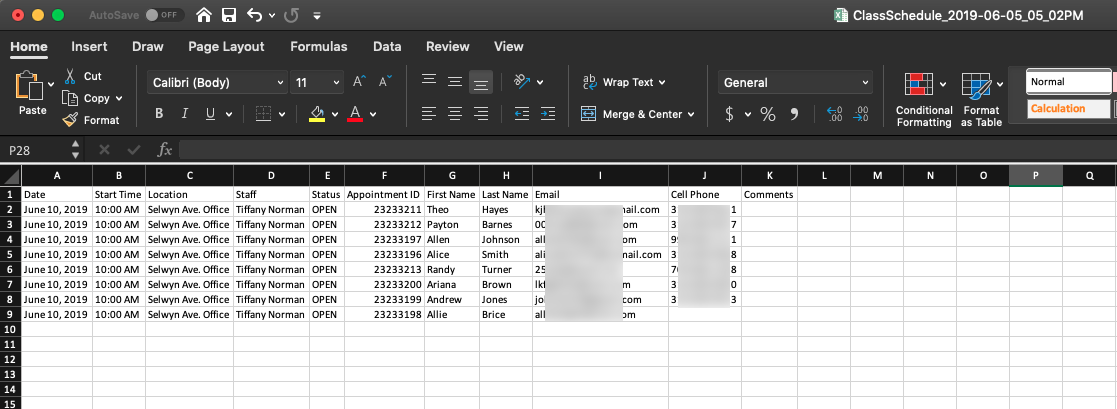
You can easily export the attendee list for any of your class sessions into Excel format.
First, navigate to the Class Session Details screen for the class session you want to download the attendees list for.
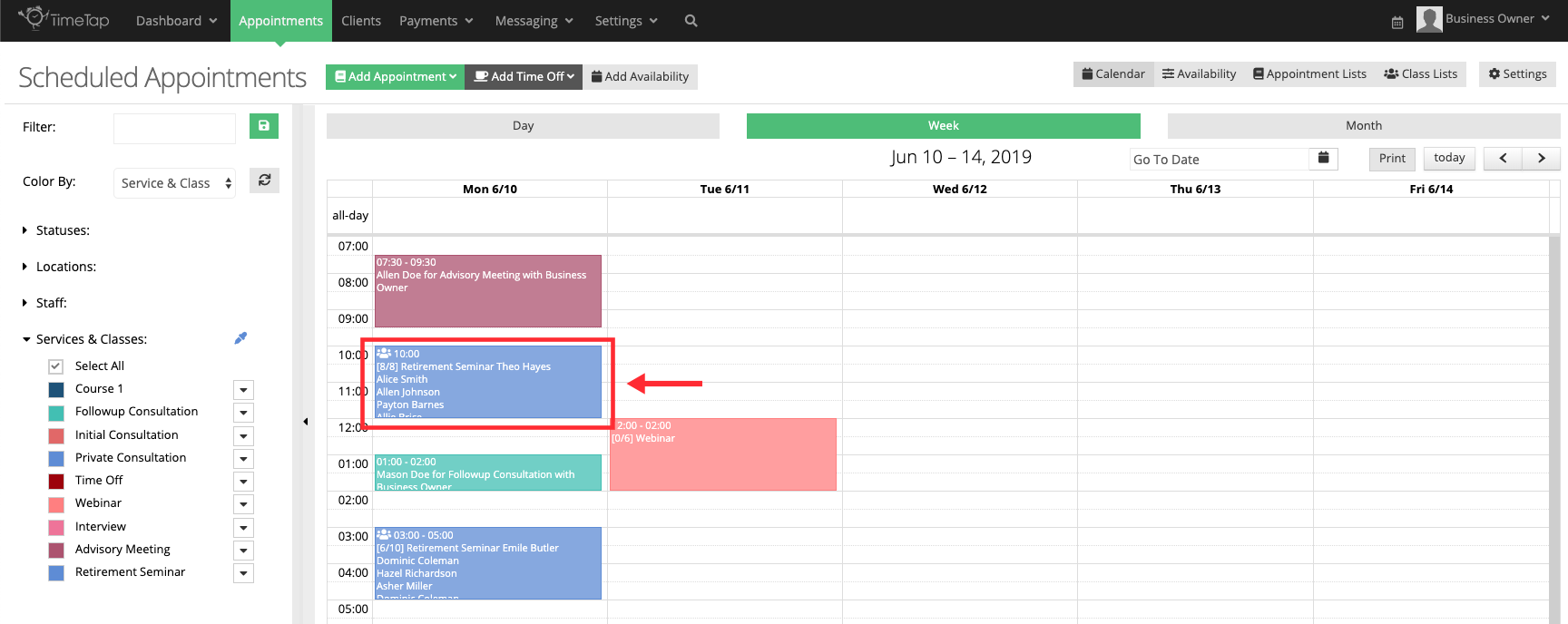
You can navigate to the Class Session Details screen for any of your Open or Closed class sessions by double clicking on the class session from your calendar view:
You'll see your attendees list in the Attendees tab within that Class Session Details screen:
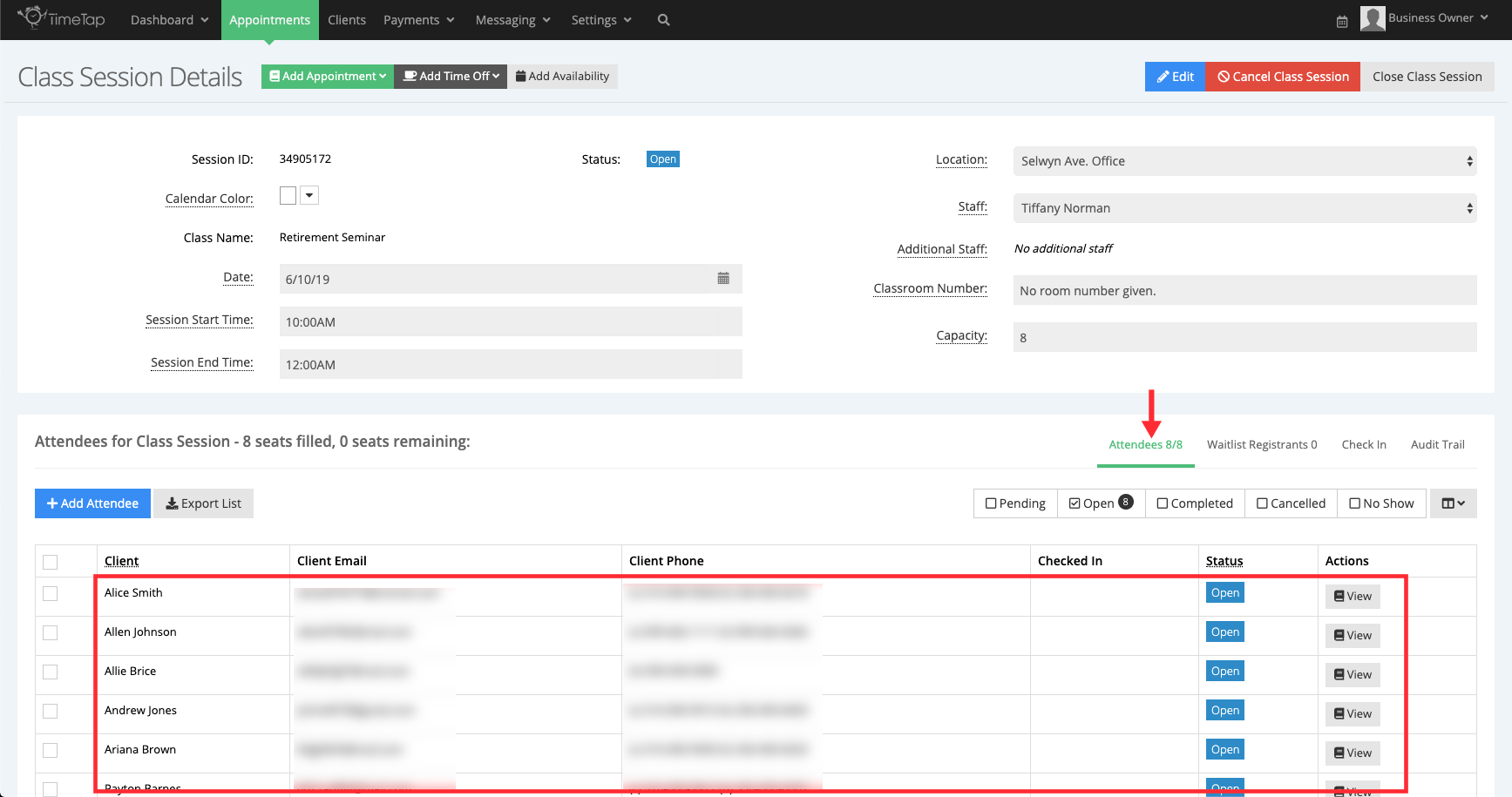
At the top right of the Attendees List, you'll see the option to Export List:

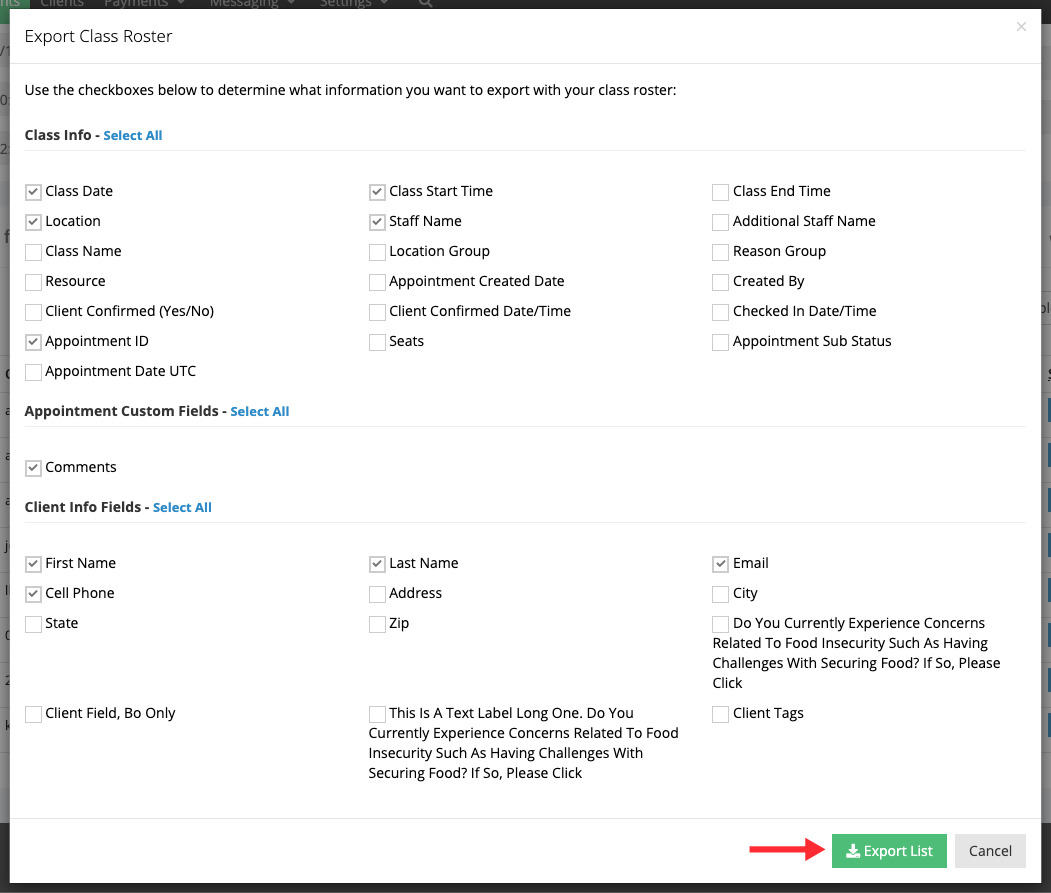
Clicking this button will bring up a window of all the items that you can include in this export of the class session roster. Select the checkboxes items you want to see on your spreadsheet, and select the Export List button when you're ready to generate that export:
This will start a download of your list, which you'll be able to find in the Downloads folder on your computer.
This file can be opened with Excel (or any other .xlsx compatible program) and you'll be able to see all the fields for all the attendees from that class session's Attendee list: