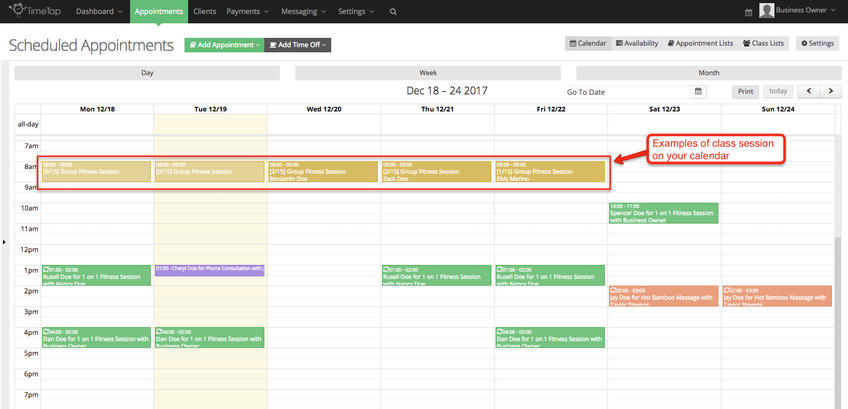
If you have created a Class in your TimeTap account and added a schedule for when the class will occur, then you will be able to see the individual class sessions from that class schedule on your Appointments → Calendar view with the registered attendees in the summary:
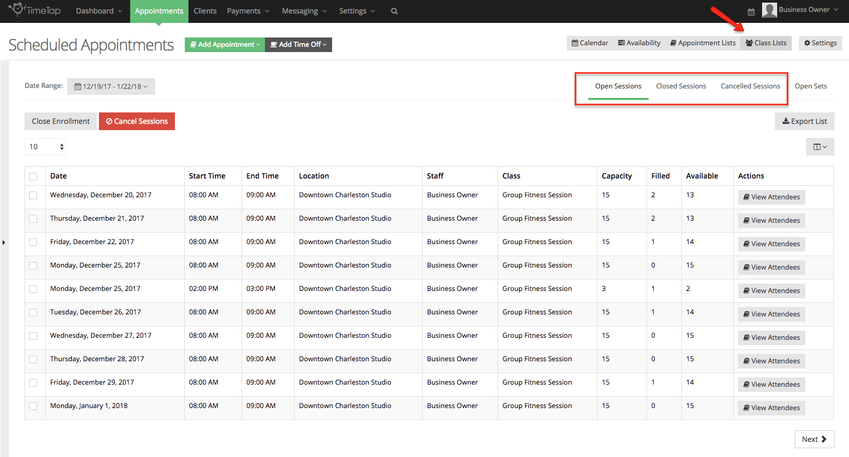
You can also see all of your Open, Closed, and Cancelled class sessions for the defined date range from the Class Lists view of the Appointments tab:
If you double click on the class session as displayed on your calendar or on the "View Attendees" button on your Class List, you will open the Class Session Details page for that individual session:
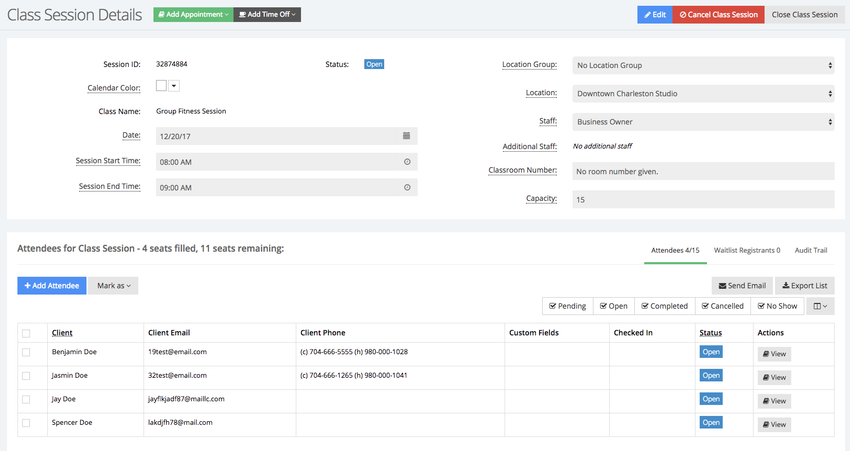
This screen will give you a quick view of the details for the class session (date, time, location, staff, and capacity), as well as a list of all the clients who have registered to attend the session. You'll also see a summary of how many more clients can register for the class (in the screenshot above, 4 seats have been filled out of 15 meaning that 11 seats are still open for booking).
From this screen you can:
- Edit the class session details
- Close the class session (or re-open the class session if it is closed)
- Cancel the class session
- Add attendees to the class
- Mark attendees as Checked In, Completed, No Show, or Cancelled
- Click to view the individual appointment record for the client
- Export your class roster