In this page we'll cover how to:
Reassigning Service Based Appointments to a Different Staff
The following method is only intended to reassign service based appointments (1-on-1). To learn how to re-assign class based appointments, go to the last section in this page.
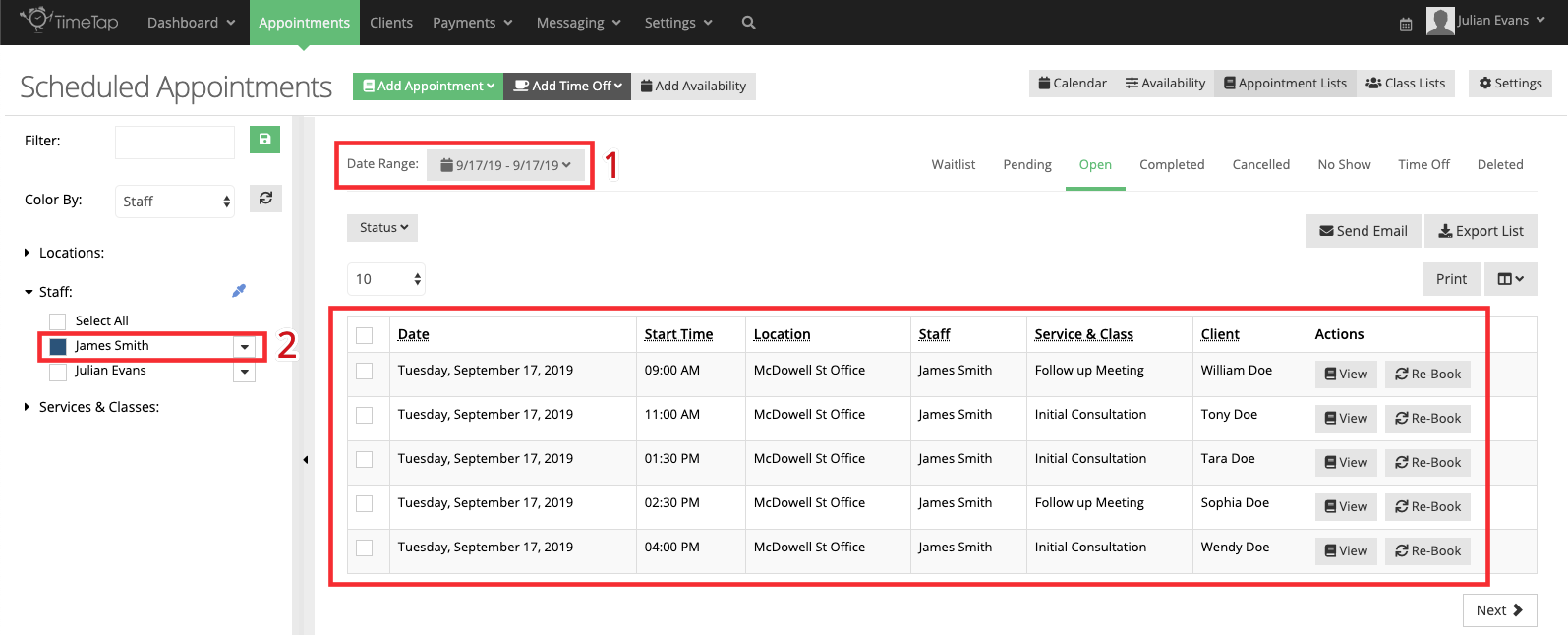
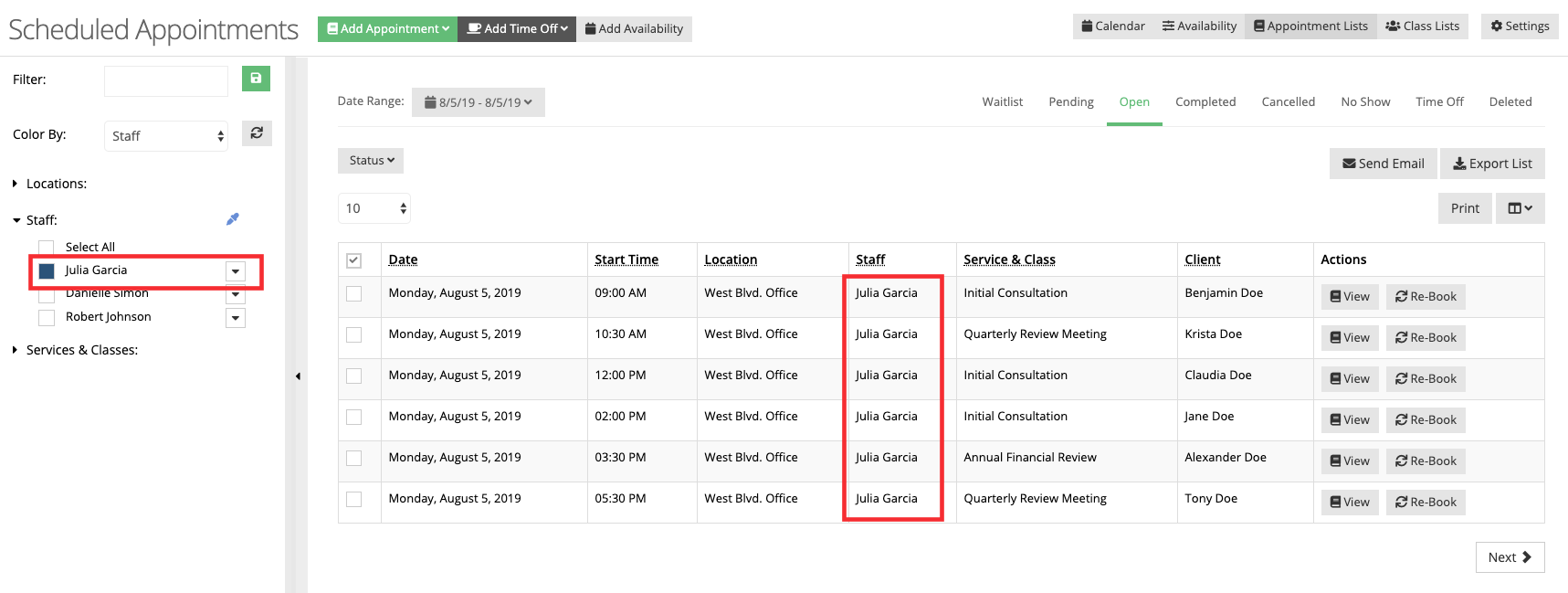
For this example, we'll assume that our staff James Smith has 5 appointments scheduled on September 17th, 2019 but due to unforeseeable circumstances, he'll not be able to be at his office on that day to assist his clients. Therefore, we must re-assign his appointments to another staff member, Julian Evans. We'll begin by locating James' appointments in the appointment lists. Choose September 17th, 2019 (1) and select James (2) in the filter to view his open appointments:
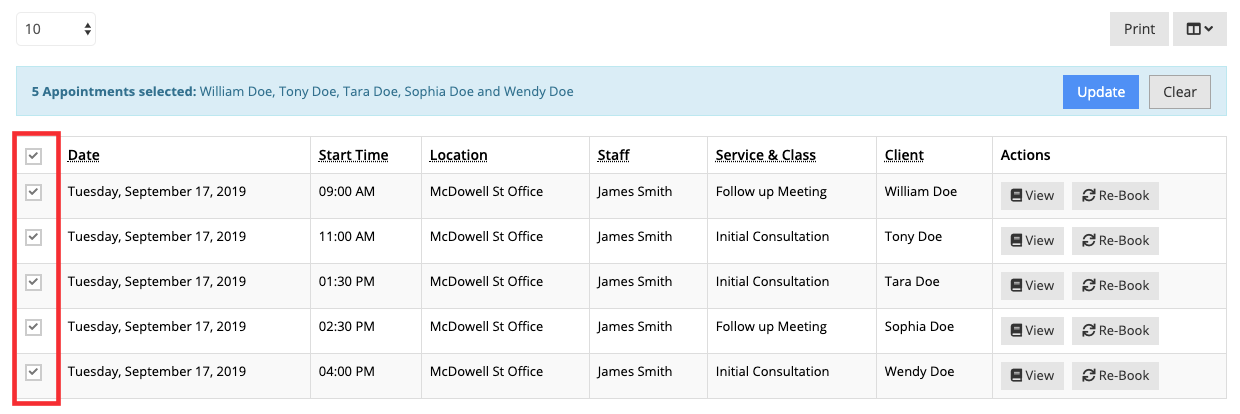
We'll then choose the appointments we want to assign to a different staff. In this example I'm selecting all appointments scheduled with James:
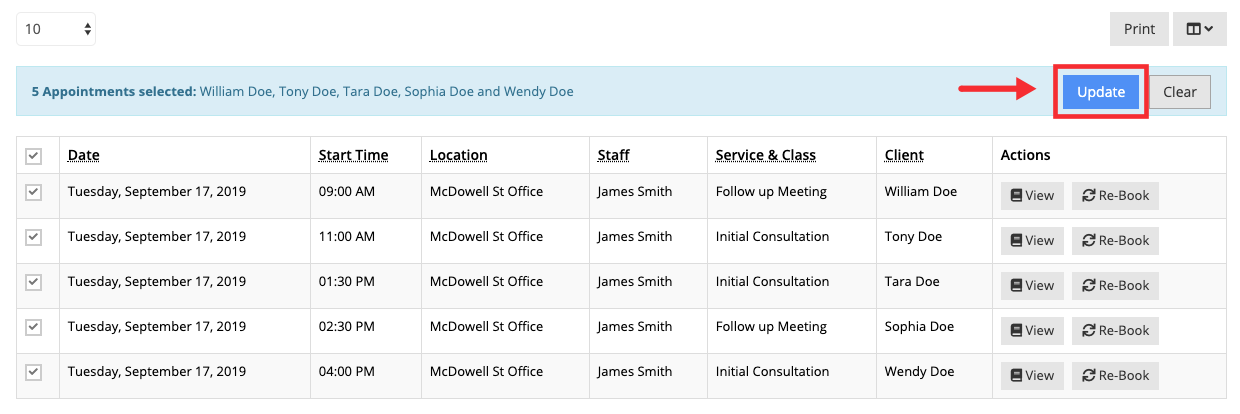
We'll then click the Update button:
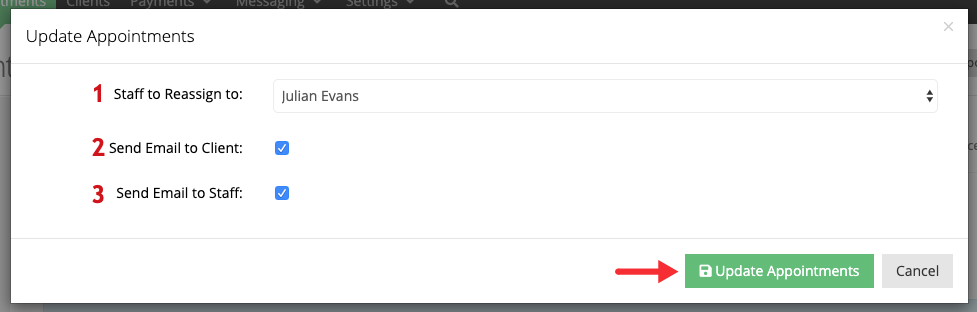
In the 'Update Appointments' window, we'll select the staff who will be assigned the selected appointments (1), we'll choose to send a notification about the change to the clients (2) and to the staff (3). After the selections are made, click Update Appointments:
After the appointments are updated, we'll select Julian in the filter to confirm that the appointments have been reassigned to a different staff member:
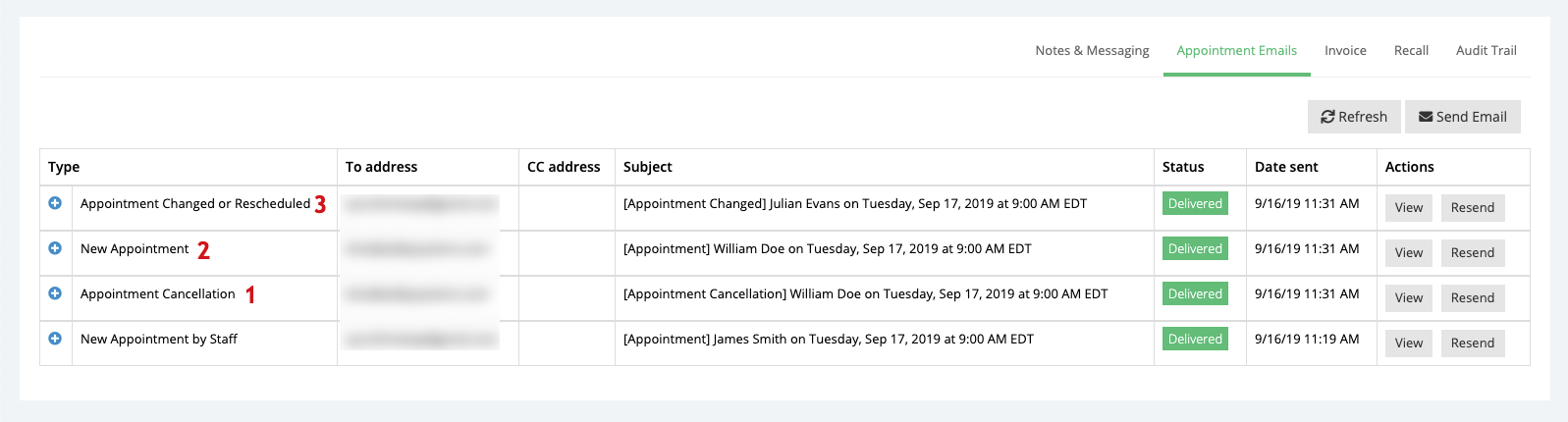
In our example, 3 emails were sent for each appointment, 1 cancellation email to our staff who was originally scheduled for the appointment (1), 1 new appointment email to the new staff we re-assigned to the appointment (2), and the "Appointment Changed or Rescheduled" template to the client to inform them about the change (3). This information can be viewed in the Appointment Emails tabs within the Appointment Details page:
Re-assigning service based appointments will not change the time or location of the appointments, only the staff assigned to assist the client.