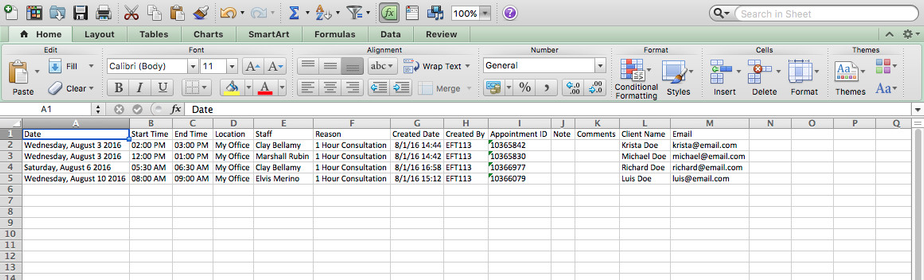
You can export any Appointment List view into Excel format for use outside of TimeTap.
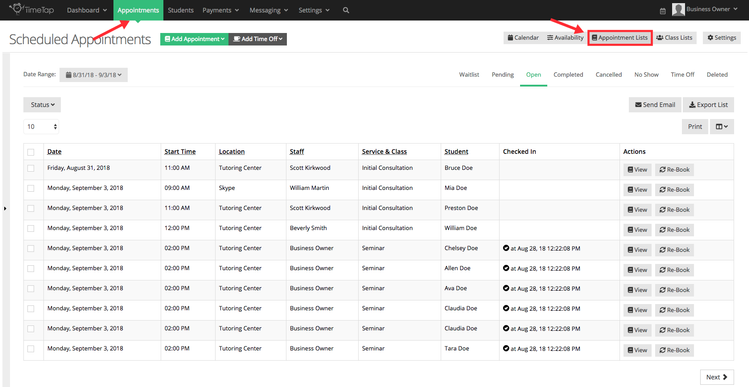
To export a list of appointments, first go to Appointments → Appointment Lists and select on the List view that you want to export:
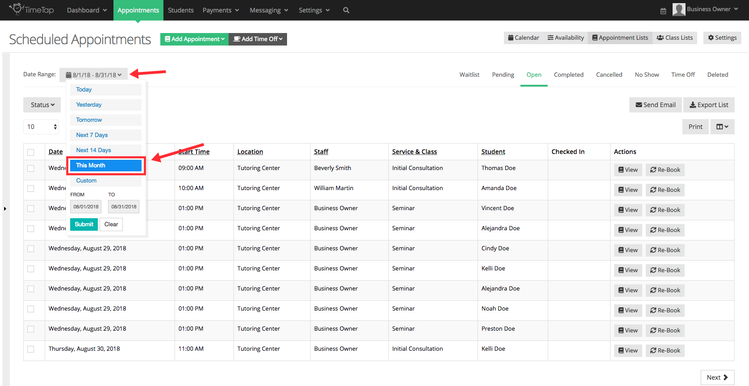
Next, define the date range that you want included in that export:
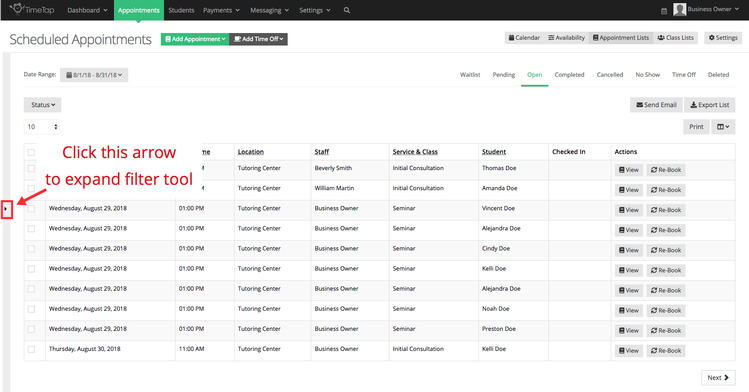
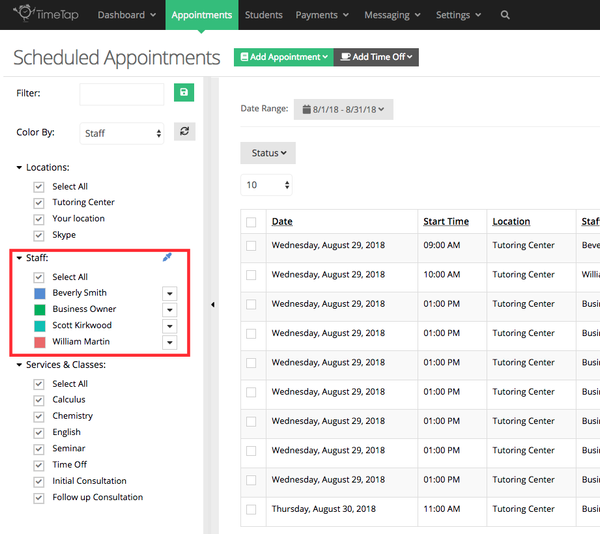
Then, you'll want to select which staff you'll want to see the appointments for. If you currently do not see any Staff listed, click the small arrow on the left side of your screen to expand the Filter panel:
With the Filter panel expanded, check the box "Select All" below staff to see all of your staff's appointments or select only specific staff that should be included:
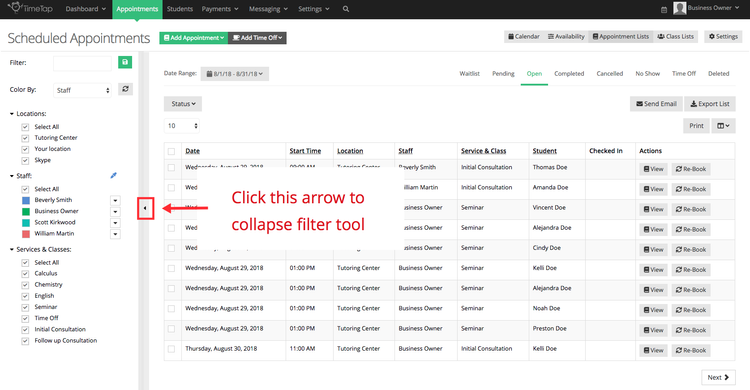
Once you've selected the staff to display, you'll see their appointments appear in the List view, you can click the small arrow on the left hand side of your screen to collapse the Filter panel again:
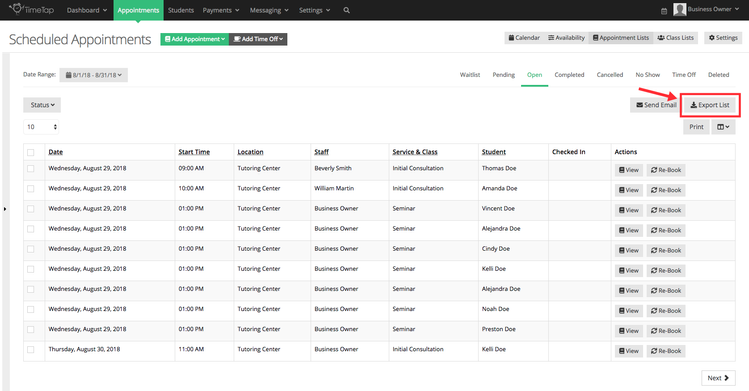
From here, click the "Export List" button in the top right of the list that you want to export for the given time range:
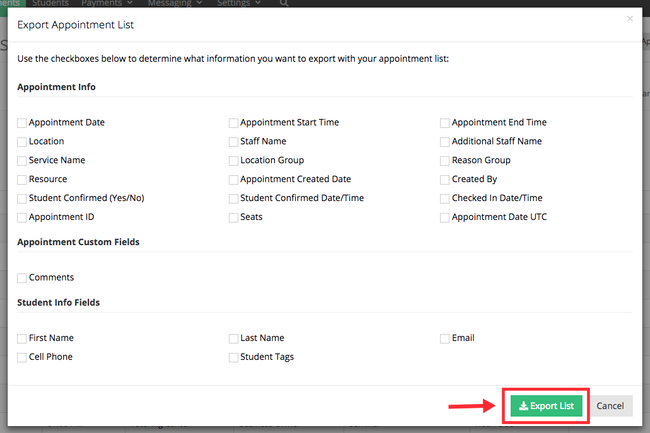
Then select which fields should be included in that export along with the list you're viewing on screen. After you've selected the fields you want to export on your list, click the green "Export List" button to initiate the export:
After you export the list, you can open it up in Excel and see all the information you exported in a nice table view (click image below to enlarge):