The Class Lists work very similarly to the Appointment Lists, only each entry in the Class Lists represents an overall class session which can have multiple appointments in it according to that session's capacity. All of the class sessions created in your account can be found under the Class Lists view of the Appointments tab.
The Class Lists also provide an easy way to change the status of a class session or navigate to the Class Session Details page.
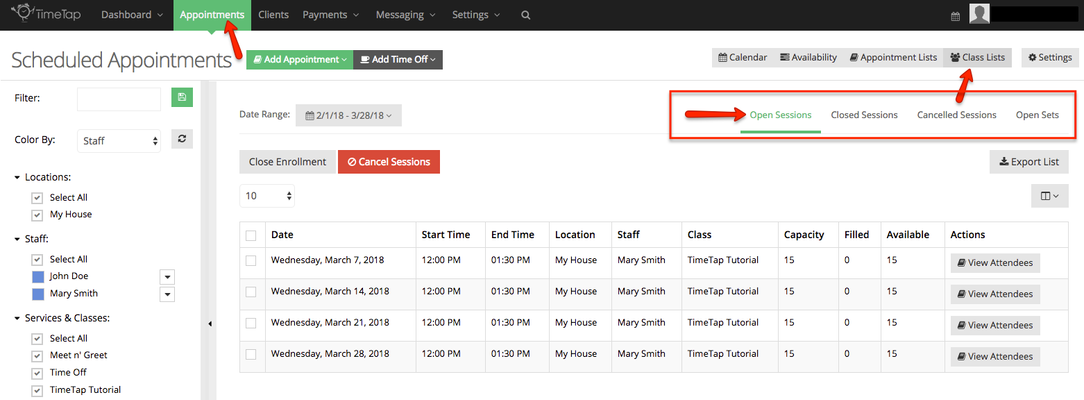
The Class Lists contains four separate views:
-
Open Sessions: displays class sessions in an "Open" status, which means the session is still available for clients to enroll in.
- If it isn't marked as a "Private class" on the class profile, then clients should still be able to view and sign up for it on your Default Booking Site.
- If it isn't marked as a "Private class" on the class profile, then clients should still be able to view and sign up for it on your Default Booking Site.
-
Closed Sessions: displays class sessions in an "Closed" status, which means the session is no longer open for public enrollment.
- The staff can still click into to the Class Session Details page and add attendees to the class session there, but it is no longer available for clients to through your booking sites.
- A class is closed automatically based on a business's Latest Class setting but can be re-opened manually from the Backoffice.
-
Cancelled Sessions: displays class sessions in an "Cancelled" status, which indicates they have been removed from the schedule by a TimeTap staff member.
- A class session is cancelled if it's just no longer being held and you want to send out a cancellation notice to all registered clients. This is the only place where you will be able to access your cancelled class sessions as session in cancelled status displays on your main Calendar view.
- A class session is cancelled if it's just no longer being held and you want to send out a cancellation notice to all registered clients. This is the only place where you will be able to access your cancelled class sessions as session in cancelled status displays on your main Calendar view.
- Open Sets: displays any course sets currently with an "Open" status, which means the session is still available for clients to enroll in.
To navigate Class Lists, first click on the tab that represents the status of the class session you are trying to find:
Next, adjust the date range dropdown so that it covers a time span that includes whatever class sessions you're interested in looking at:
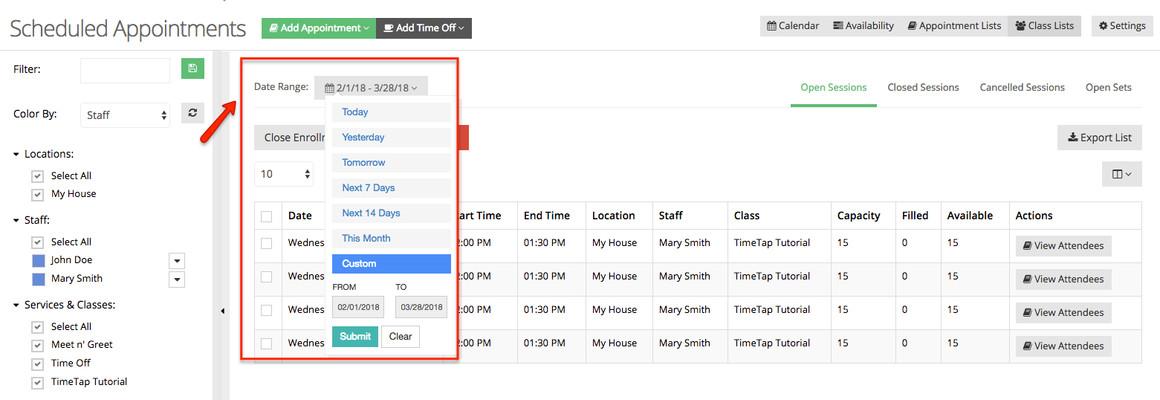
Adjusting the date range will filter the results that display in your Class Lists to just sessions who date falls within that range. From your narrowed down list, you can:
- Open the Class Session Details page using the View Attendees buttons
- Select class sessions and Export List to download a summary of your sessions schedule
- Select class sessions and change their status using the available buttons above