If you’d like quick access to the TimeTap Backoffice from your mobile device, you can add it to your home screen as a shortcut. This creates an icon that looks and feels similar to a mobile app, giving you fast access to your TimeTap account and appointments.
📱 For iPhone (Safari)
- Go to the Safari app
 on your iPhone.
 Go to the TimeTap Backoffice login page and sign in to your account: https://backoffice.timetap.com
- Tap
 , then tap Share.
If your Tabs layout is Bottom or Top, tap .
.
-
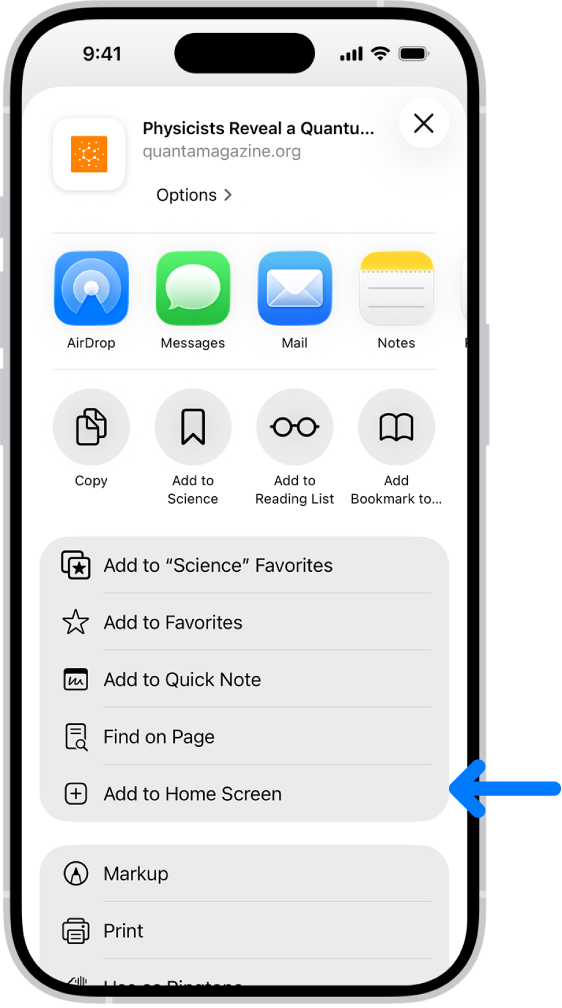
Scroll down the list of options, then tap Add to Home Screen.
If you don’t see Add to Home Screen, you can add it. Scroll down to the bottom of the list, tap Edit Actions, then tap
 Add to Home Screen.
 - Tap Add.
🤖 For Android (Chrome browser)
Open the Chrome browser on your Android device.
Go to the TimeTap Backoffice login page and sign in to your account: https://backoffice.timetap.com
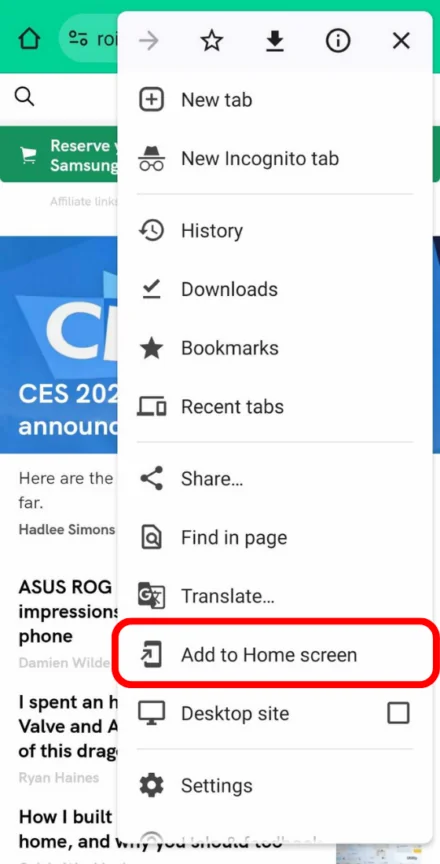
- To the right of the address bar, tap More
Add to Home screen
- From the dialog that appears:
- Rename: Select the default name for the shortcut or rename the shortcut.
- Tap Add.

 Add to Home screen