The Re-Book button is your go-to tool for quickly scheduling a duplicate appointment for a client.
When to Use the Re-Book Button
Use this feature when a client needs to book a new follow-up appointment quickly. By selecting 'Re-Book', the client's details are saved, allowing you to choose a new date and time without re-entering their information.
If you need to move the existing appointment to a new date or time, then you should instead use the Edit or Reschedule process.
Where to Find the Re-Book Button
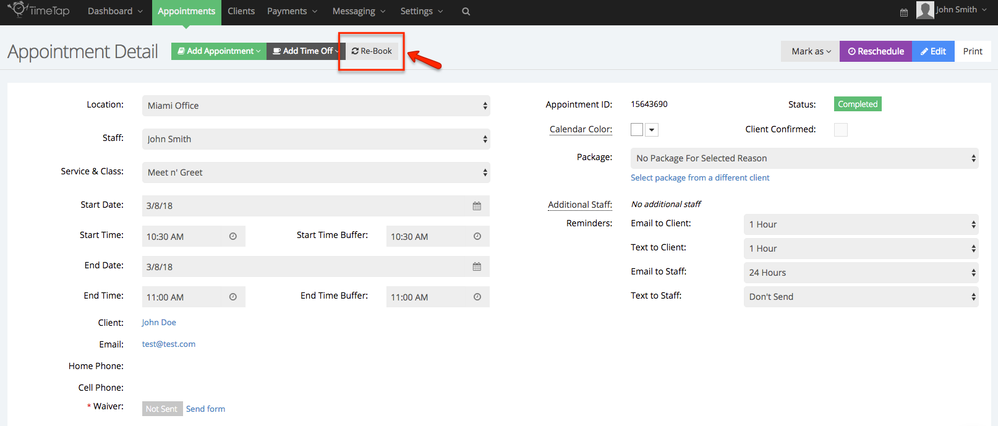
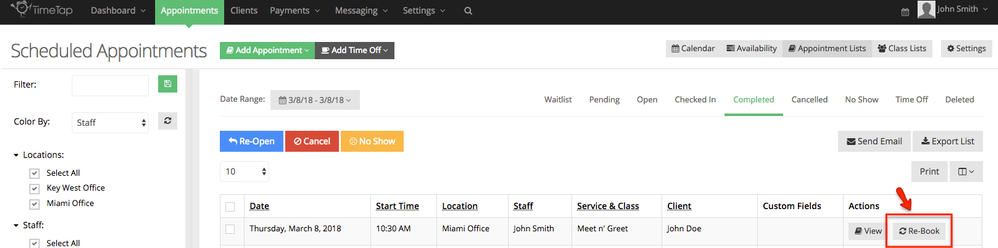
You can access the Re-Book button in two places:
1. Appointment Detail Page
2. Appointment Lists Page
How to Use the Re-Book Button
- Select the Re-Book button
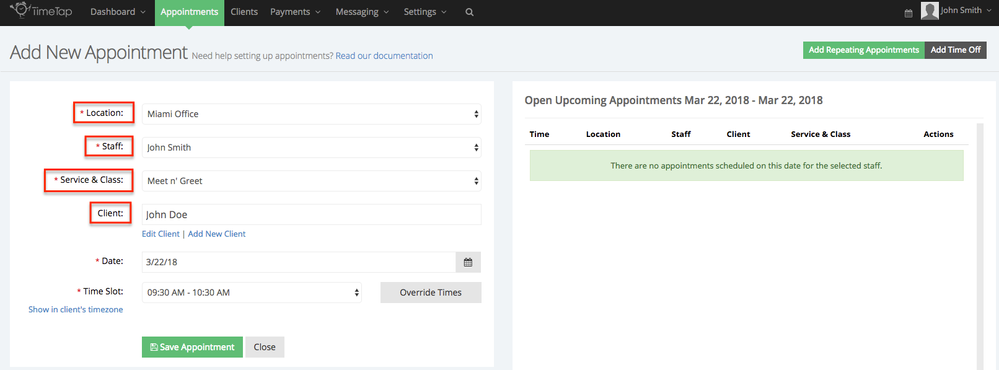
- A new page will open with the New Appointment view, pre-filled with the client's details and appointment information from the original booking
- Choose the new date and time for the appointment
- Click Save Appointment to finalize the booking
If there is no availability at the selected location for the new appointment, you will see a notification indicating the lack of availability. In this case, you can either:
- Choose a different location with availability.
- Add availability to the original location.
By following these steps, you can easily re-book appointments without re-entering client information.