This help doc covers the follow edits that can be made to repeating appointments -
- Changing the Date or Time for a Single Appointment in a Repeating Appointment Series
- Extending the Date Range for a Repeating Appointment Series
- Switching the Day of the Week the Appointments are Set on
- Changing the Time of the Day for the Appointments in the Series
- Adjusting how Frequently the Appointments Occur
- Swapping out the Service for the Appointments
The more you use TimeTap's repeating appointment functionality, the more you'll get used to how to make these types of changes. The goal by the end of this documentation is to get you familiar with some of the common changes you may need to make.
After leaving that day, she told you that she wanted to make a standing appointment for every Wednesday & Friday from 12:15 PM - 12:30 PM starting next Wednesday, which is June 17, 2026, and continuing through the end of September. You set up her repeating appointment in the Backoffice (using the Add Repeating Appointments dropdown button) and now she has that standing Wednesday & Friday time slot on your calendar -
On July 8, she comes in for her standard appointment but tells you that she's not going to be able to make it on Friday, July 10 because she'll be traveling for a weekend beach trip. She asks you if she can reschedule for Monday, July 13 at the same time.
To check out whether this is possible, you navigate to Michelle's appointment that is set for July 10 and click on the purple Reschedule button -
After clicking to reschedule, you get presented with the Reschedule Appointment window. You click through to July 13 to see what kind of availability you offer on that day around noon -
You tell Michelle which timeslots you offer around that time, and she she says that actually the 11:45 PM - 12:00 PM timeslot works better for her. So you select that timeslot and click on the purple Confirm & Reschedule button -
This will cause the Confirm Rescheduled Appointment window to pop up, and here you will see a summary of the rescheduling changes you are making, can opt to send out emails to the client or the staff and can add any rescheduling notes before clicking on the purple Save Rescheduled Appointment Time button -
After saving the new rescheduled appointment time, the appointment date and time will update for just that 1 appointment in the repeating series -
If you scroll down to the bottom of the appointment profile and click on the Related Appointments tab, you can see that the rest of the appointments in the repeating series remain scheduled for their normal dates & times -
In early July Shelly tells you how much she is loving the massages, and asks you if she can book an additional 10 appointments on the same days of the week at the same time. Instead of booking a new repeating appointment series you decide that it would be cleaner if you just extended the date range of her current repeating appointment series.
To do this, you go to the profile of one of the appointments in her current series and click on the View the repeating appointment link -
This will take you to the series profile page, where you can make edits to the repeating appointment series or even cancel it. Since you want to extend the series, you'll want to click on the blue Edit button -
Once you've started editing the repeating appointment series, you'll want to change the value of the Ends On by clicking on the date selector field -
To add 10 appointments to the repeating set you'll want to select August 13 for the new Ends On date and click on the green Save Changes button. You'll then get prompted on whether you want to send out an email about the edit you have made to the repeating series and if you want to leave any Change Notes, and when you are satisfied you can click on the green Save Changes to All Repeating Appointments button -
After saving the appointment series with a later end date, you will see that the new Ends On date is set to August 13, 2026 -
You currently have her repeating appointment series set to start on June 11, 2026 and set to end on never, which just means that it doesn't have an end date defined. To make the necessary changes, you'll first need to click on the blue Edit button on the upper right -
You'll now be able to change the day that the series repeats on to Sunday, and then can click on the green Save Changes button - -
After the new date is set so that the November 5th appointment is moved to November 8th, you'll want to select the button to "Save Changes" in the bottom right hand corner:
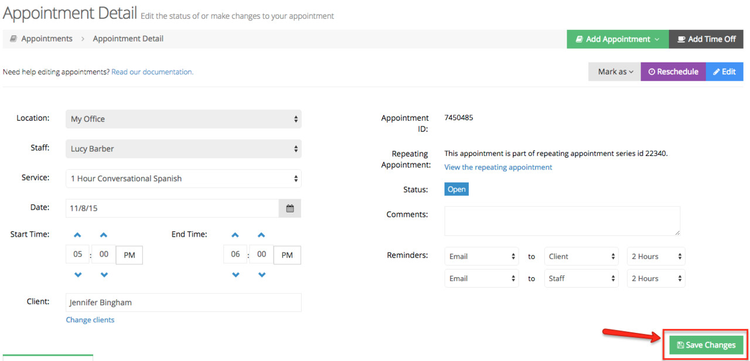
Upon pressing Save Changes, you'll be presented with the option of whether you want this to affect only this appointment, following appointments, or all appointments. By selecting that you only want it to affect the following appointments, then all the appointments between Thursday, July 2nd, 2015 and Thursday, October 29th, 2015 will remain on Thursdays, where as any appointment from November 8th, 2015 - onward will be put on Sundays:
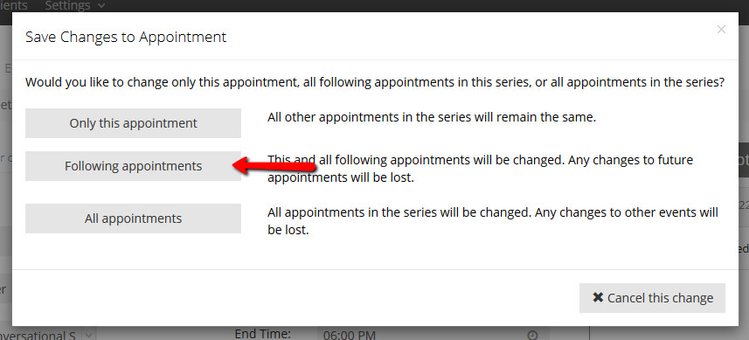
Pressing that you want it to affect all following appointments will then bring up the "Save Changes to Appointments" window where you'll see a brief summary of the date range change you made. You can also select to send out an email to Jennifer or send an update to yourself about the change to the appointment. You can also add in a change note which will go to Jennifer as well.
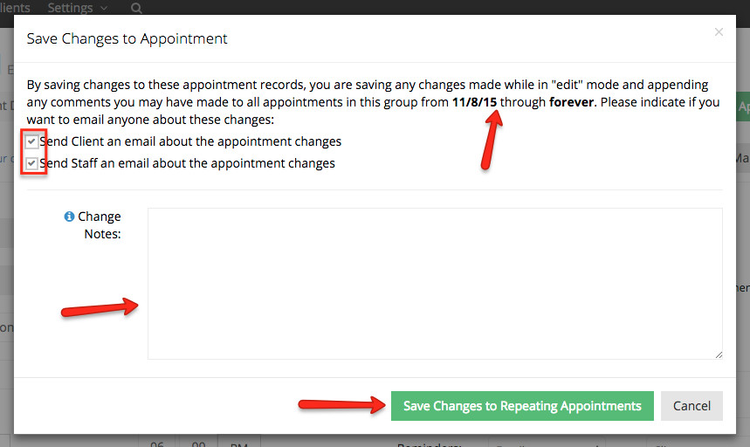
Once you've selected those settings, just click the green "Save Changes to Repeating Appointments" button and you'll be taken back to the Appointments > List > Open screen where you'll see all the appointments that are now included in the repeating appointment series you just edited.
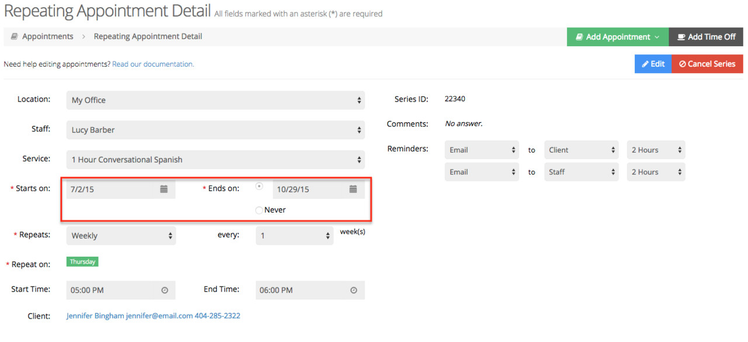
You'll notice from here, that your repeating appointment series with Jennifer will have broken into two different repeating appointments. One of them will be from July 2nd, 2015 to October 29th, 2015 whereas the other will be from November 8th, 2015 onward. Here's the repeating appointment detail screen for the first set of repeating appointments that occurs every week between 7/2/2015 - 10/29/2015 on Thursdays:
And for the appointments on Sundays from 11/8/2015 - onward, they will have a separate repeating appointment details page and series ID:
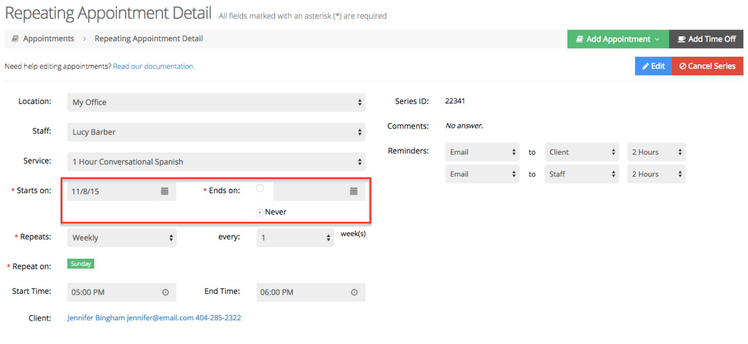
On your Calendar view you'll see that the appointments for Jennifer up until October 2015 occur on Thursdays:
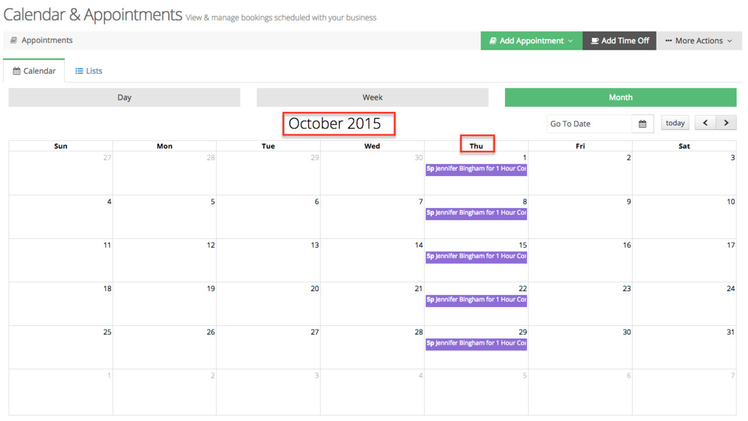
Whereas the appointments starting in November occur on Sundays:

Changing the time of the day for the appointments in the series
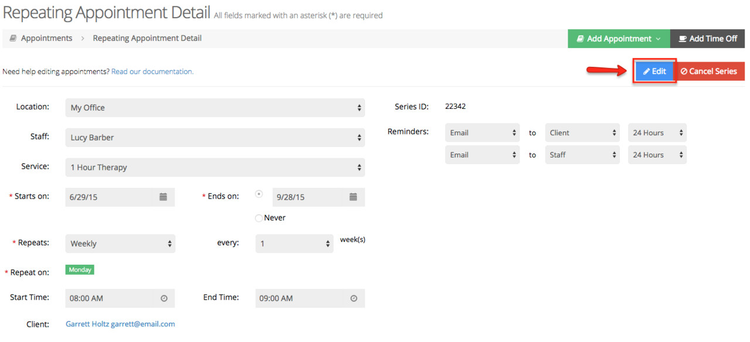
Pretend you're a psychologist (or don't pretend if you already are one  ) and one of your clients, Garrett Holtz, wants to make a repeating appointment for Mondays starting June 29th through the end of September at 9am. You're thrilled, but you accidentally enter in the start time at 8am and Garrett is not trying to talk personal issues that early.
It's easy to switch the time to 9am instead of 8am if you made a mistake like this. Simply navigate to the Repeating Appointment Detail screen for Garrett's appointment and click the "Edit" button in the top right:
Once you enter edit mode, you can change the start time up to 9:00am by hitting the up arrow above the start time hour mark:
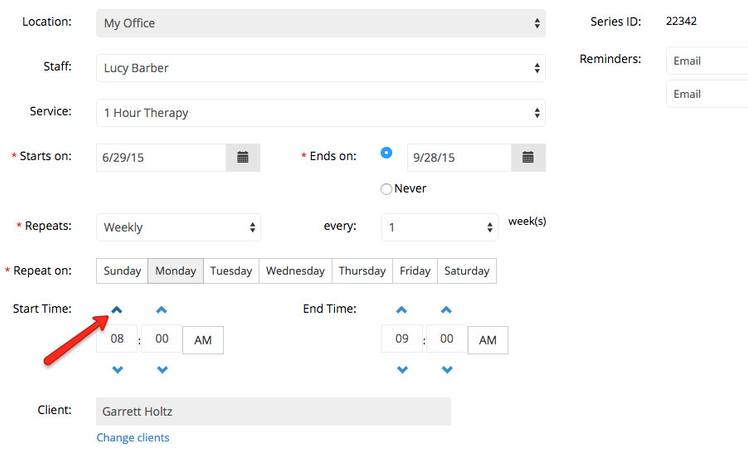
Once you change the start time to 9am, then the end time will automatically adjust to 10am since the duration of the service is set to 1 hour:
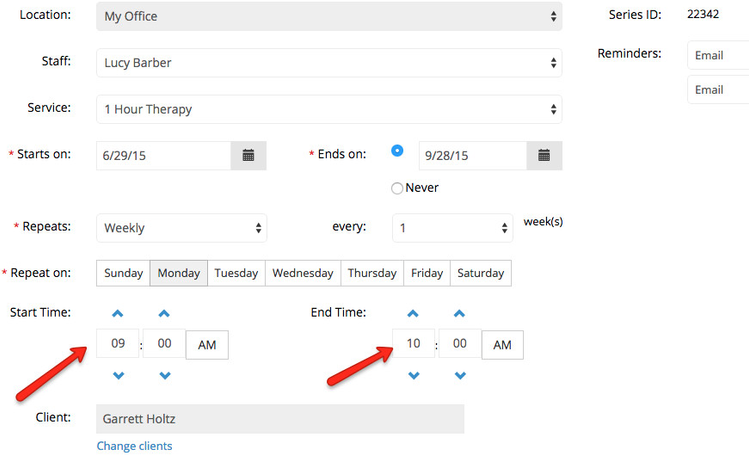
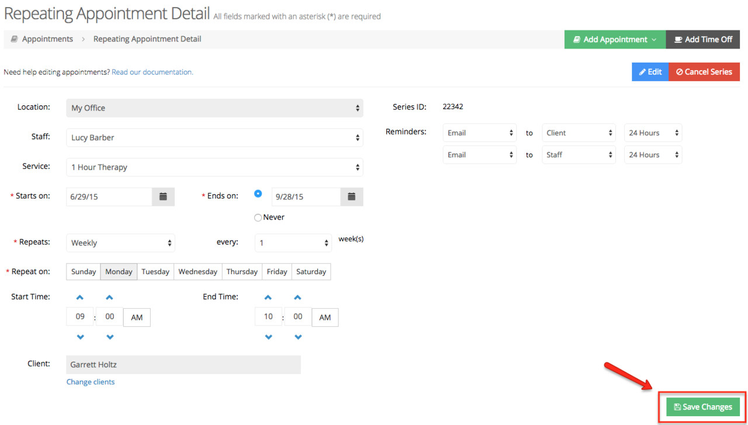
Now just press "Save changes" at the bottom of the screen:
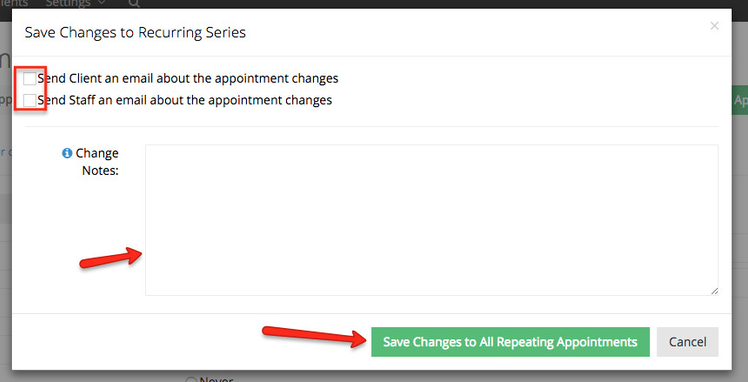
After pressing the Save Changes button, you'll be presented with the "Save Changes to Appointments" window where you can also select to send out an email to Garrett or send an update to yourself about the change to the appointment. You can also add in a change note which will go to Garrett as well:
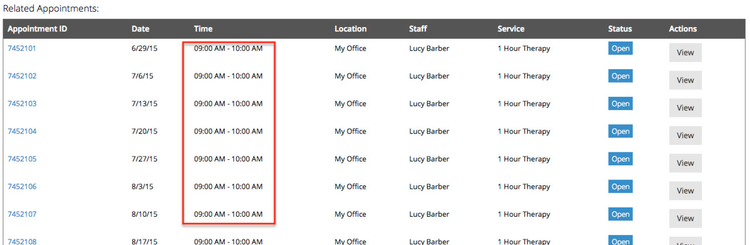
Now all appointments in the series will display at 9am instead of 8am:
Valerie told you this news at your appointment on June 24th at the end of your weekly meeting. Afterwards, you login to TimeTap and navigate to the repeating appointment detail screen for Valerie's appointments and press the "Edit" button:
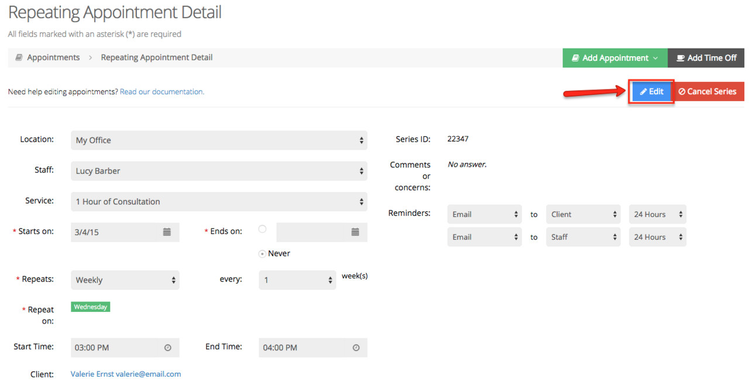
This will make the screen editable so that you can apply an end date to the existing series:
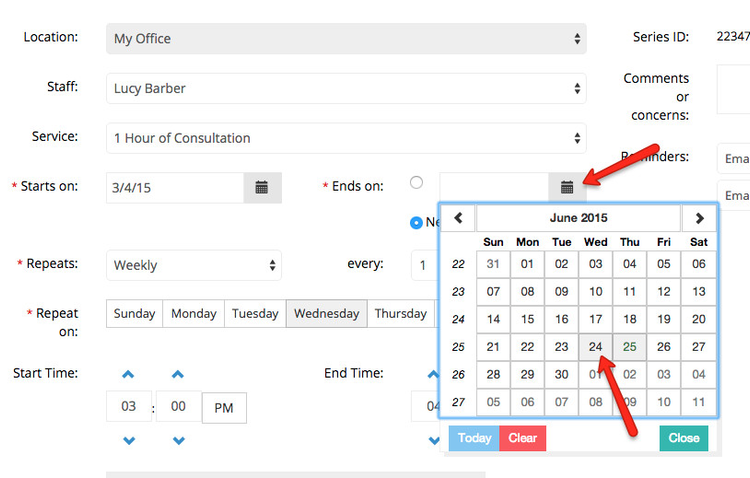
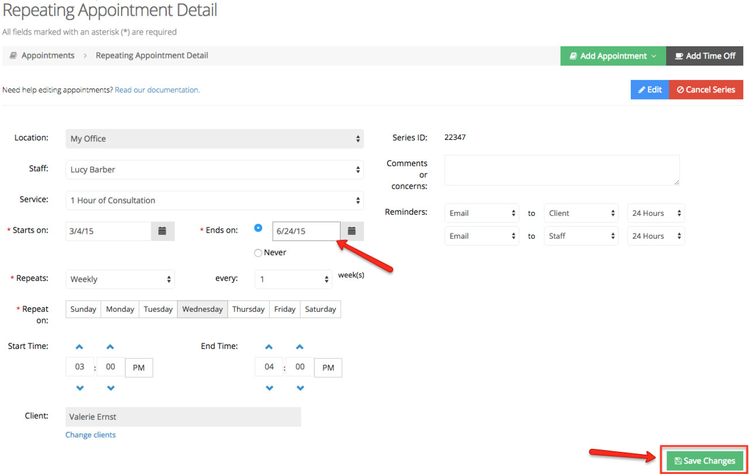
After selecting the end date for the existing repeating appointment series, go ahead and click "Save Changes" at the bottom of that screen:
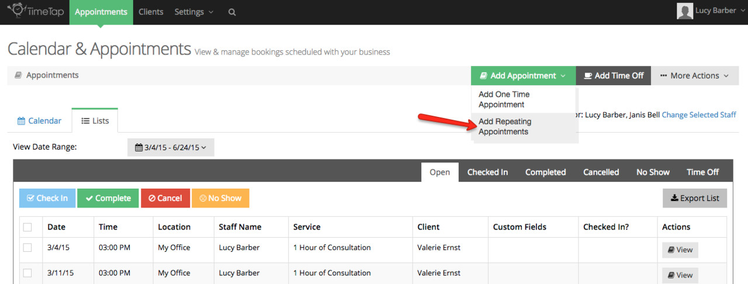
Now that the existing repeating appointment series is end dated on 6/24/15, we can click the "Add Appointment" button to add in a new repeating appointment:
Now I'm ready to add in appointments starting next week to repeat every other week for an indefinite period. To do this, I'll first make sure I've selected the proper staff, service, and entered in my client's name:
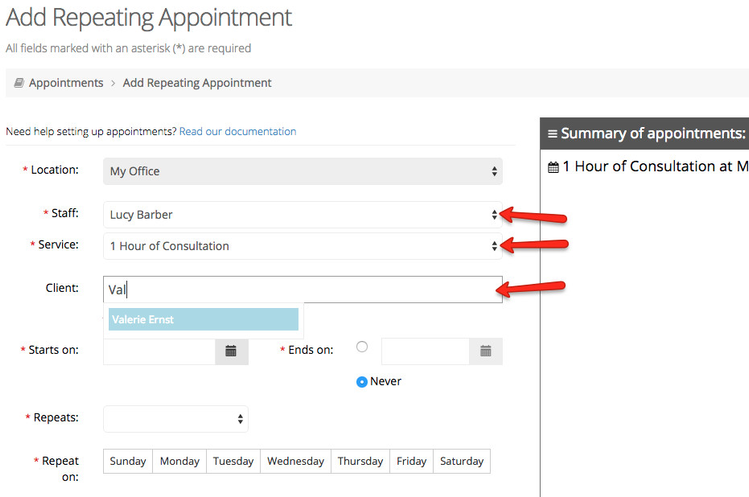
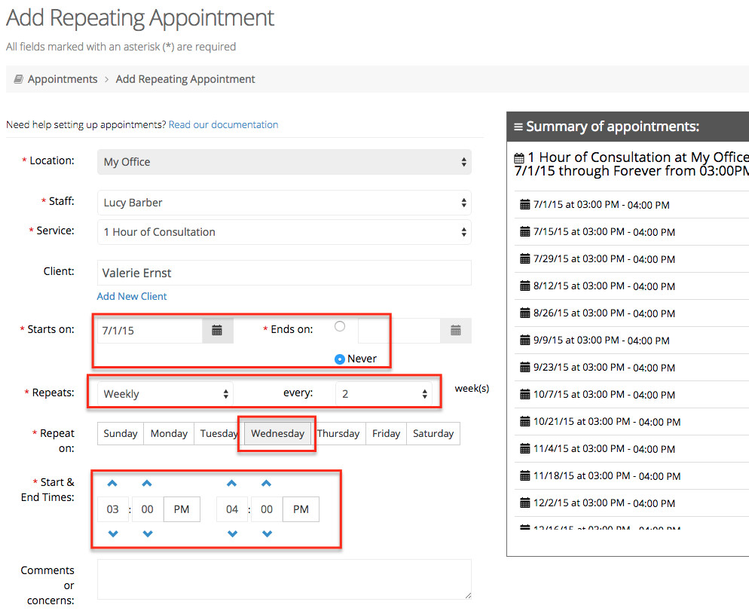
Now I just need to define the series so that it starts on "July 1st, 2015" and ends on "Never". Once I've set those two criteria, I'll select that it repeats every 2 weeks on Wednesdays at 3:00pm:
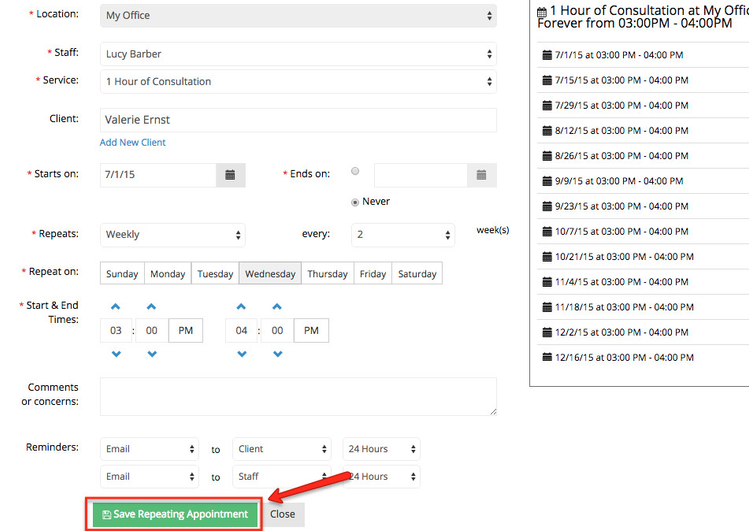
Once all the criteria is defined, I can press the button to "Save Repeating Appointments" and the appointments will be committed to my schedule, repeating every other week at 3:00pm:
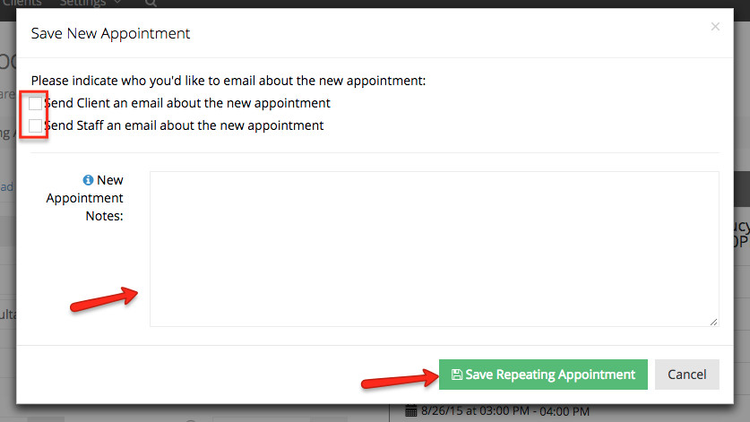
From here, I can select to send out an email to my client about the appointment and add a note if I'd like:
After that, I'm done. The appointments are successfully set for every other week starting on July 1st and the first set of appointments that repeated every week are still saved on my account for me to go back and reference at any time.
You're thrilled! Extra income and extra time with that cute pup! It's easy to make this change to Mutsy's standing appointment in your system.
Let's say Mutsy's parent told you this on the first Monday in June, which means starting the first Monday in July, Mutsy will be in for the Teddy Bear treatment. What you'll need to do is navigate to Mutsy's July appointment detail screen:
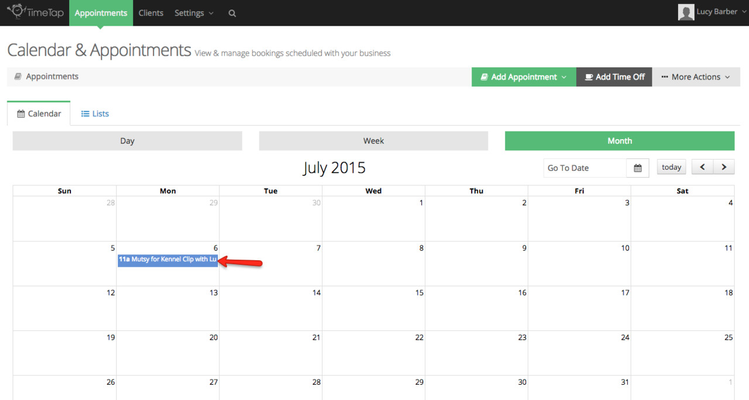
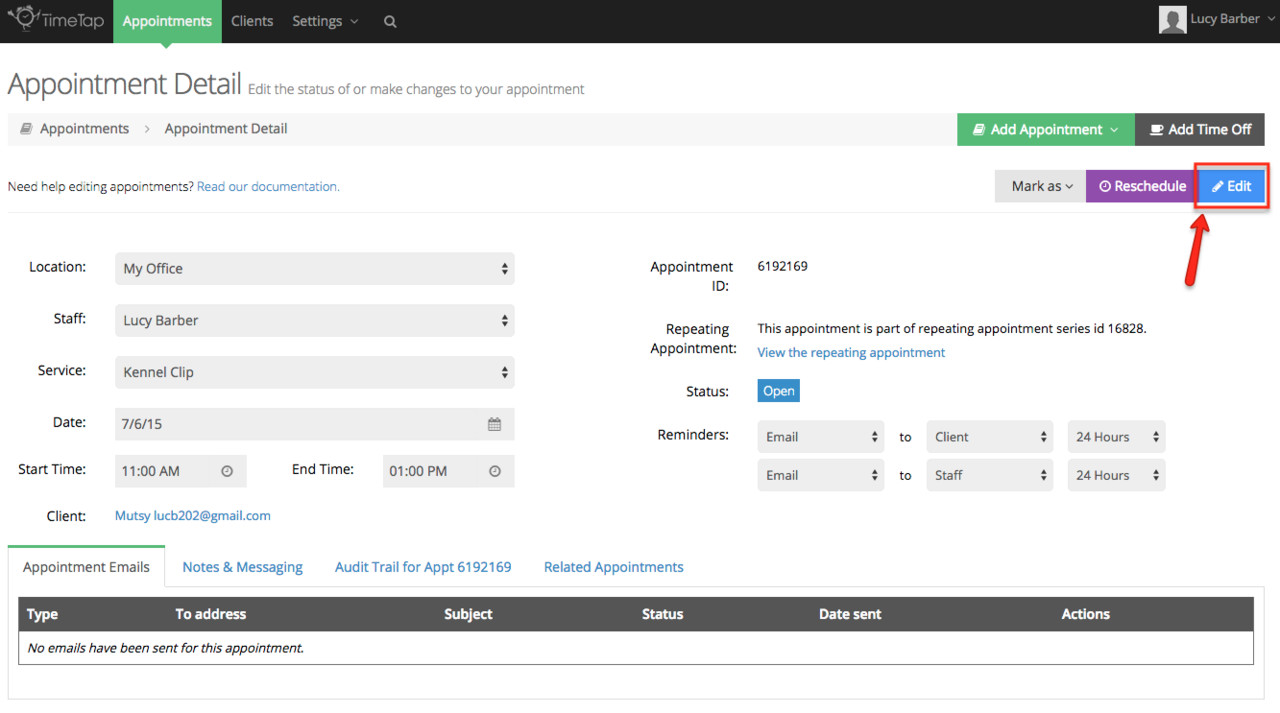
Once on the appointment detail page for Mutsy's July 1st appointment, click the "Edit" button:
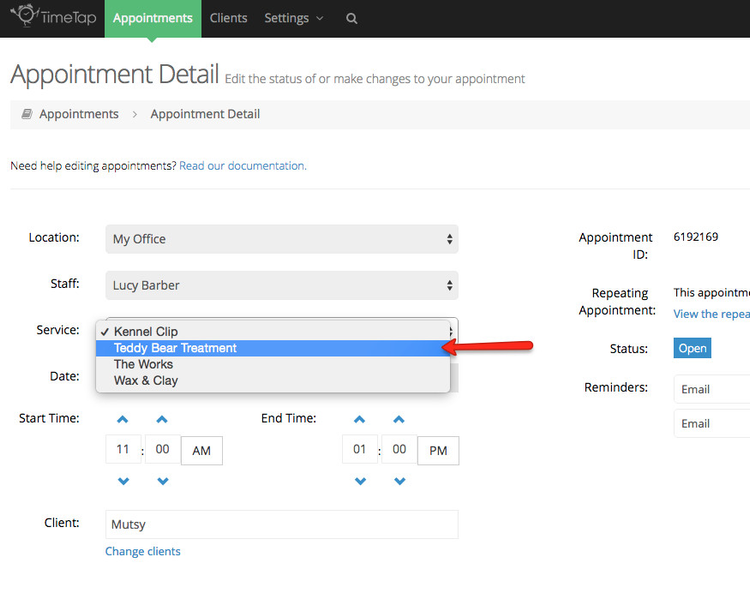
Once in Edit mode, you can go ahead and change the service to "Teddy Bear Treatment" instead of the assigned "Kennel Clip":
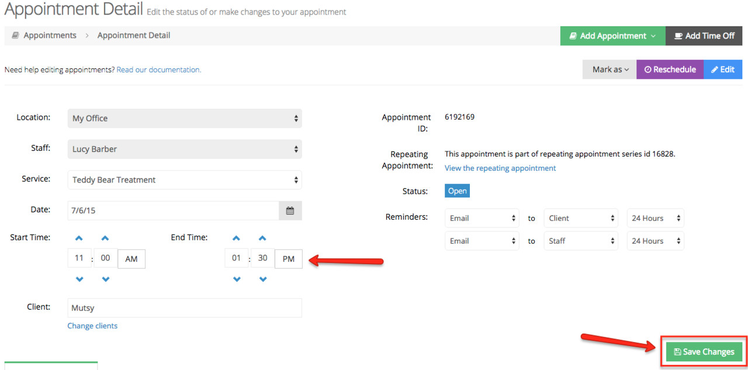
Once you've finished changing the Service, you will see the end time for the appointment update based on the newly selected service's duration. From here you can just click the Save Changes button at the bottom of the Appointment Detail screen to commit the new service:
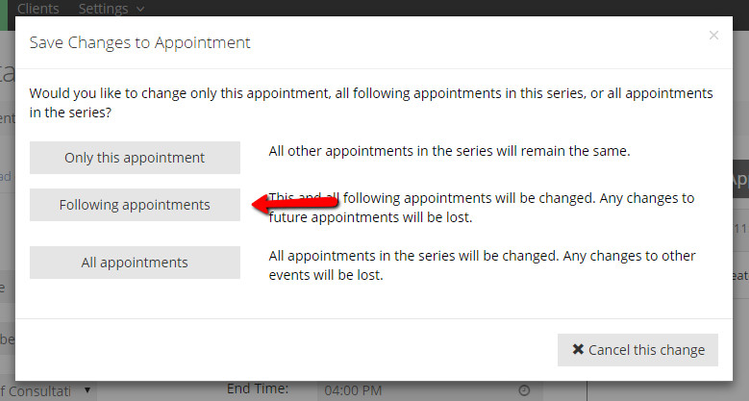
Since you made changes to a repeating appointment series, you'll be prompted with whether you want these changes to apply to just this one appointment, all following appointments or all appointments in the series. Since you just want it to take affect for Mutsy's appointments from the first Monday in July - onward, you can select the "Follow Appointments" button:
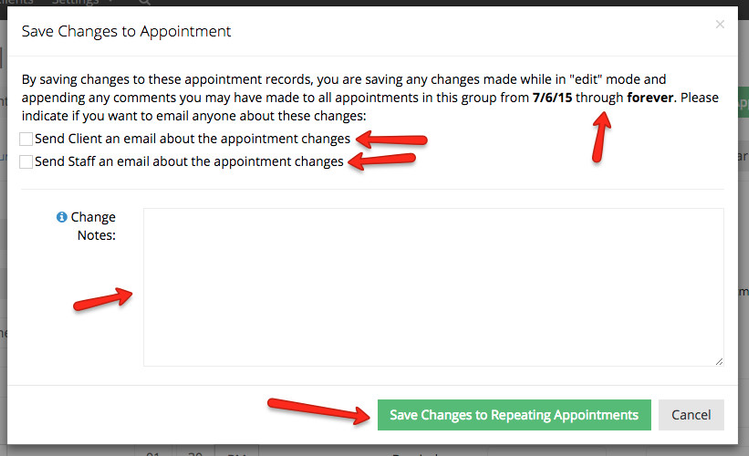
After pressing the Following appointments button, you'll see a summary of the date range you're applying the change to. You can decide whether you want to send Mutsy's parent or yourself an email about the change and whether you want to enter a change note:
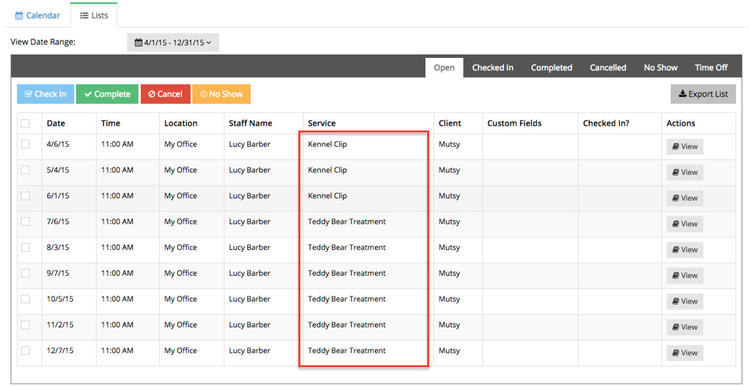
After pressing the green "Save Changes to Repeating Appointments" button, you'll move back to the main appointments screen where you'll see that the service for Mutsy's monthly appointments has been updated to Teddy Bear Treatment.
If you are interested in learning more about using Repeating Appointments, you can read some of our related documentation by clicking the links below:
- Adding Repeating Appointments
- Repeating Appointment Confirmation Email to Clients
- Repeating Appointment Confirmation Email to Staff