Rescheduling an appointment using the Reschedule button
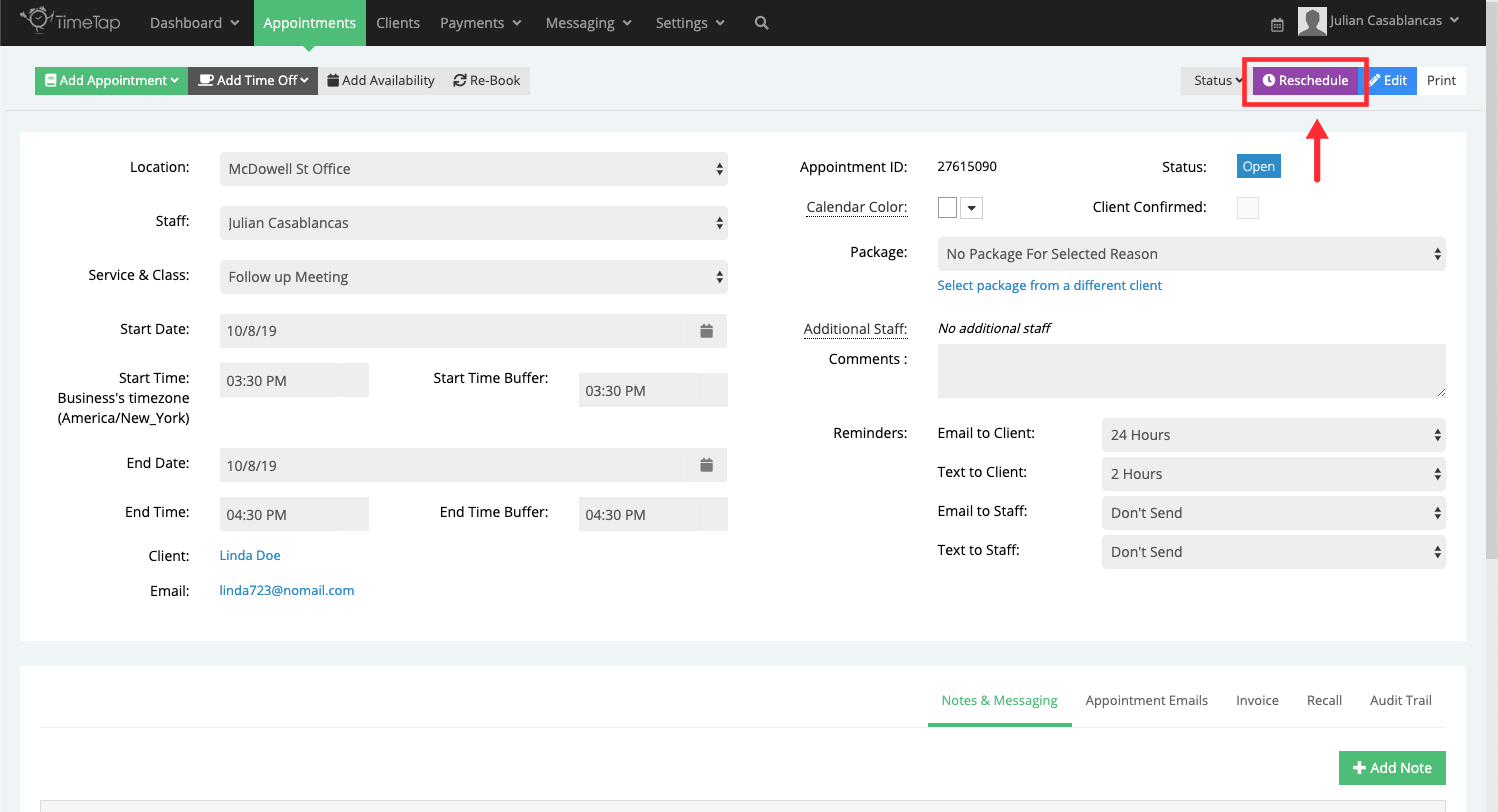
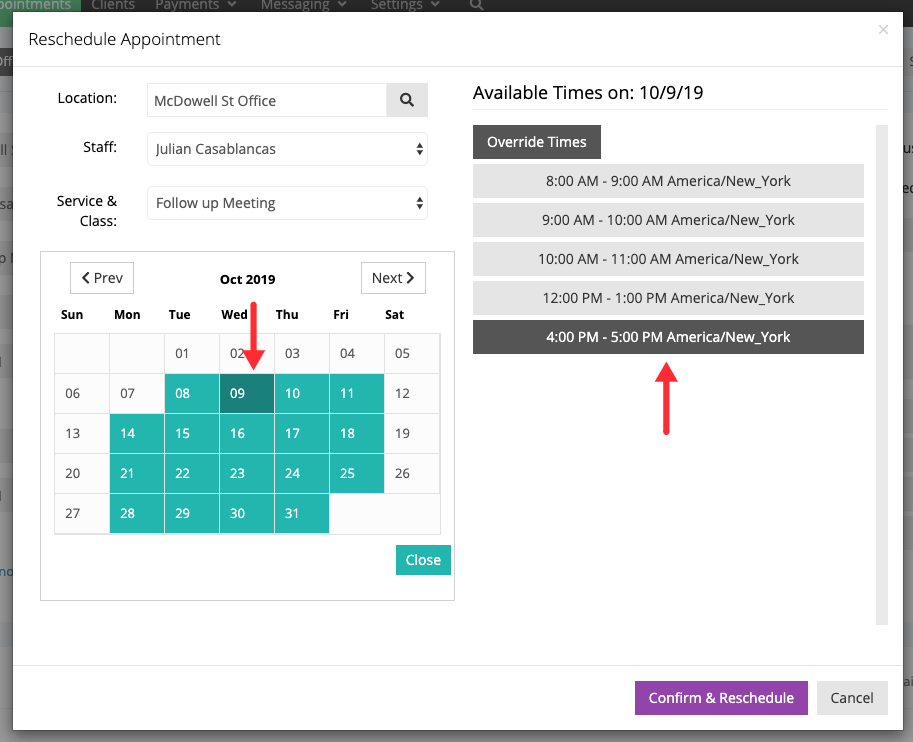
Clicking reschedule will bring up the Reschedule Appointment window. From here you'll see available dates in teal and available times on the selected dates on the right in grey. Any time slots that are already filled by other appointments will not be offered. For instance, on the screenshot below, 1:00pm - 4:00pm on October 9th is already filled by other clients and thus those times aren't offered to me. I can choose a different time for the appointment, like 4:00pm-5:00pm:
If none of the times available are good for you or your client, click the Override Times button to choose a time that is not available. This option will allow you to reschedule this appointment during a time when your already have an appointment or time off scheduled as well as a time when you don't have availability:

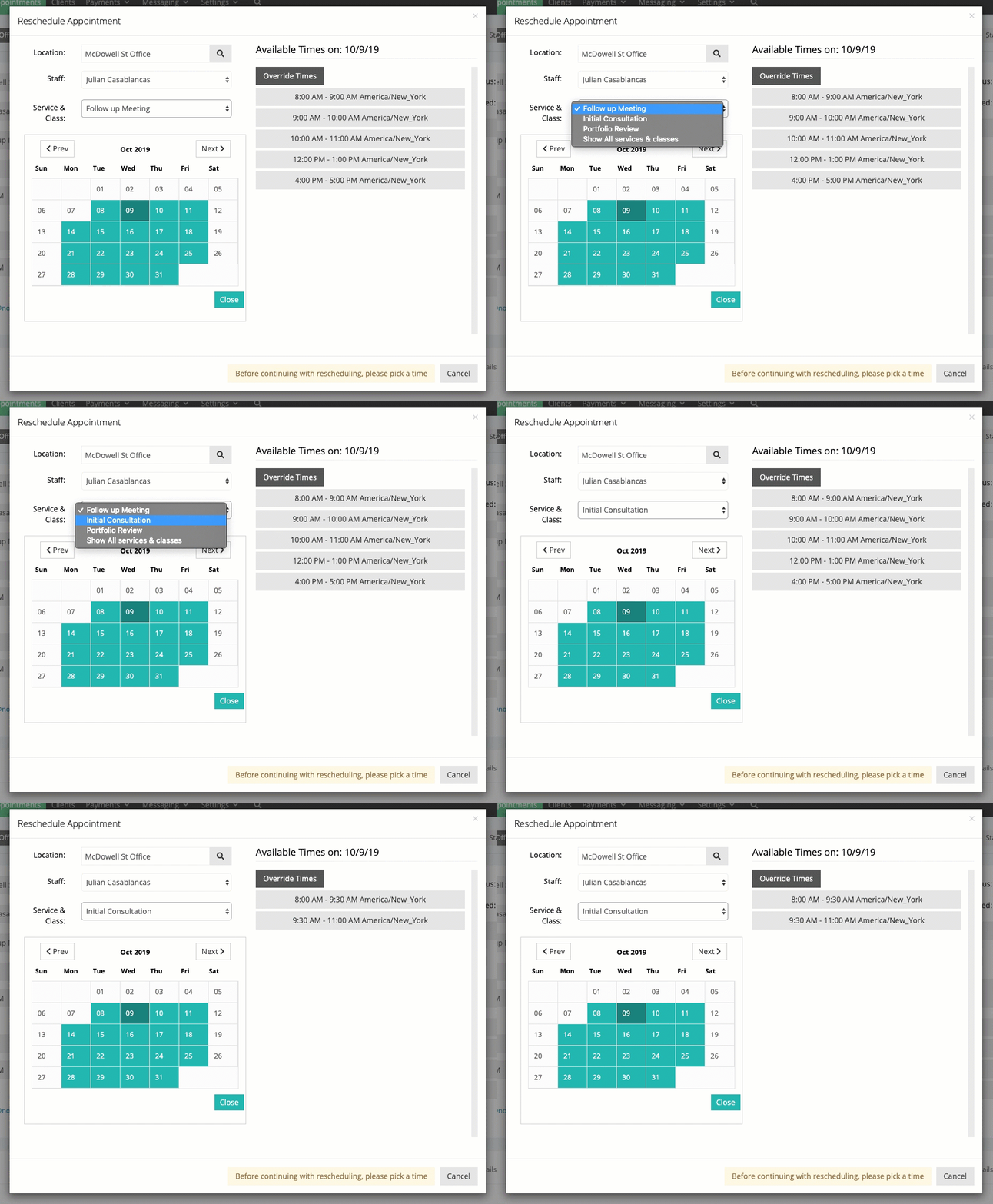
If I wanted, I could also change the service that the appointment was for and the available times would update with time slots that reflect the new service's duration:
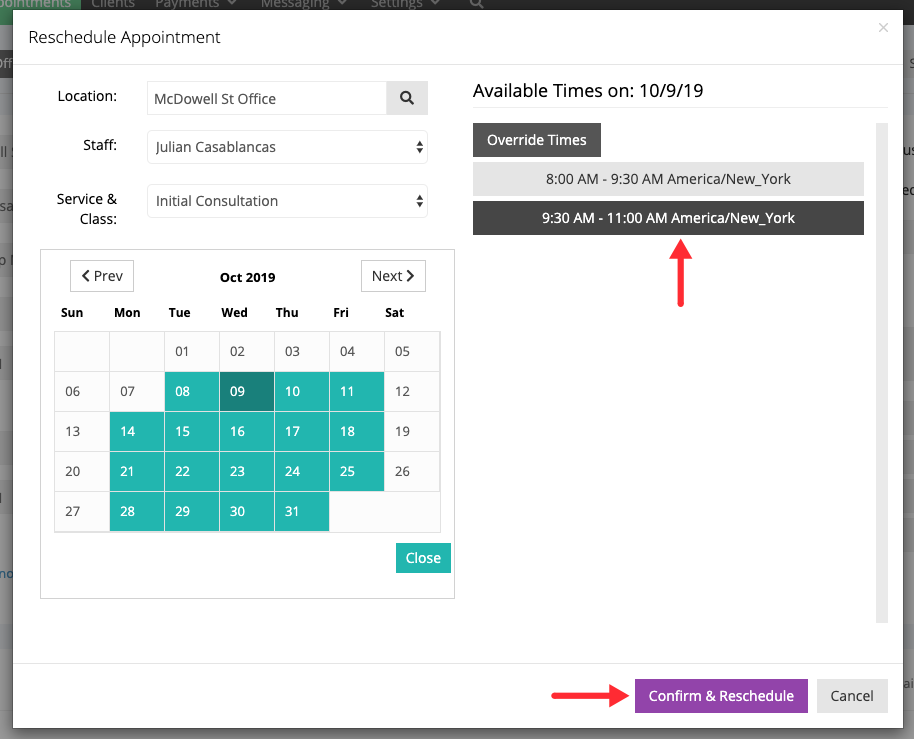
After switching the service and generating the new list of available time slots, I can choose which one I'd like (or select "Override Times" if you wanted to put it at a time that wasn't listed there) and press the purple "Confirm & Reschedule" button:
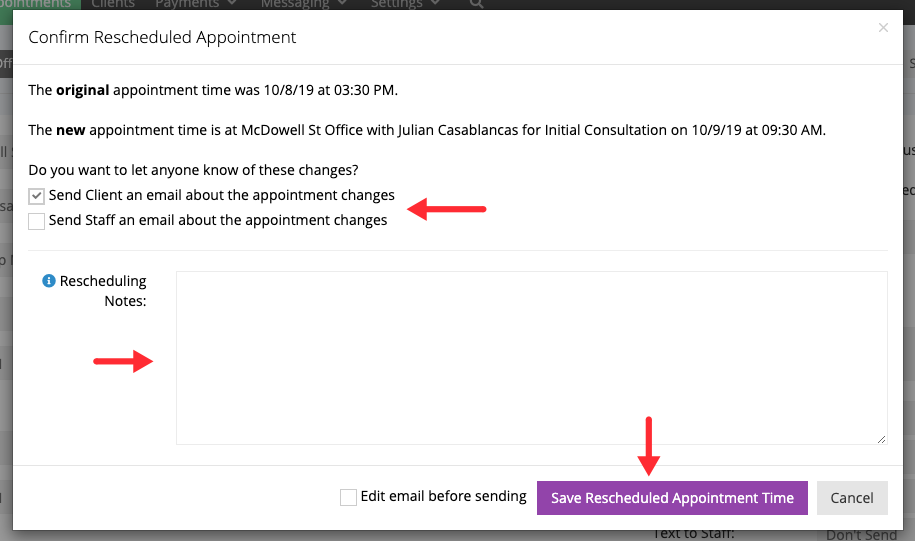
This will bring up the "Confirm Rescheduled Appointment" screen where I can select who I'd like to email about the rescheduling (the client and/or the staff person) and any appointment change note I'd like to enter. After setting these preferences I can click "Save Rescheduled Appointment Time" to send out the emails:
At this point the screen will refresh and all the changes you just made will be recorded in the Notes & Messaging tab as well as the Audit Trail for your appointment:
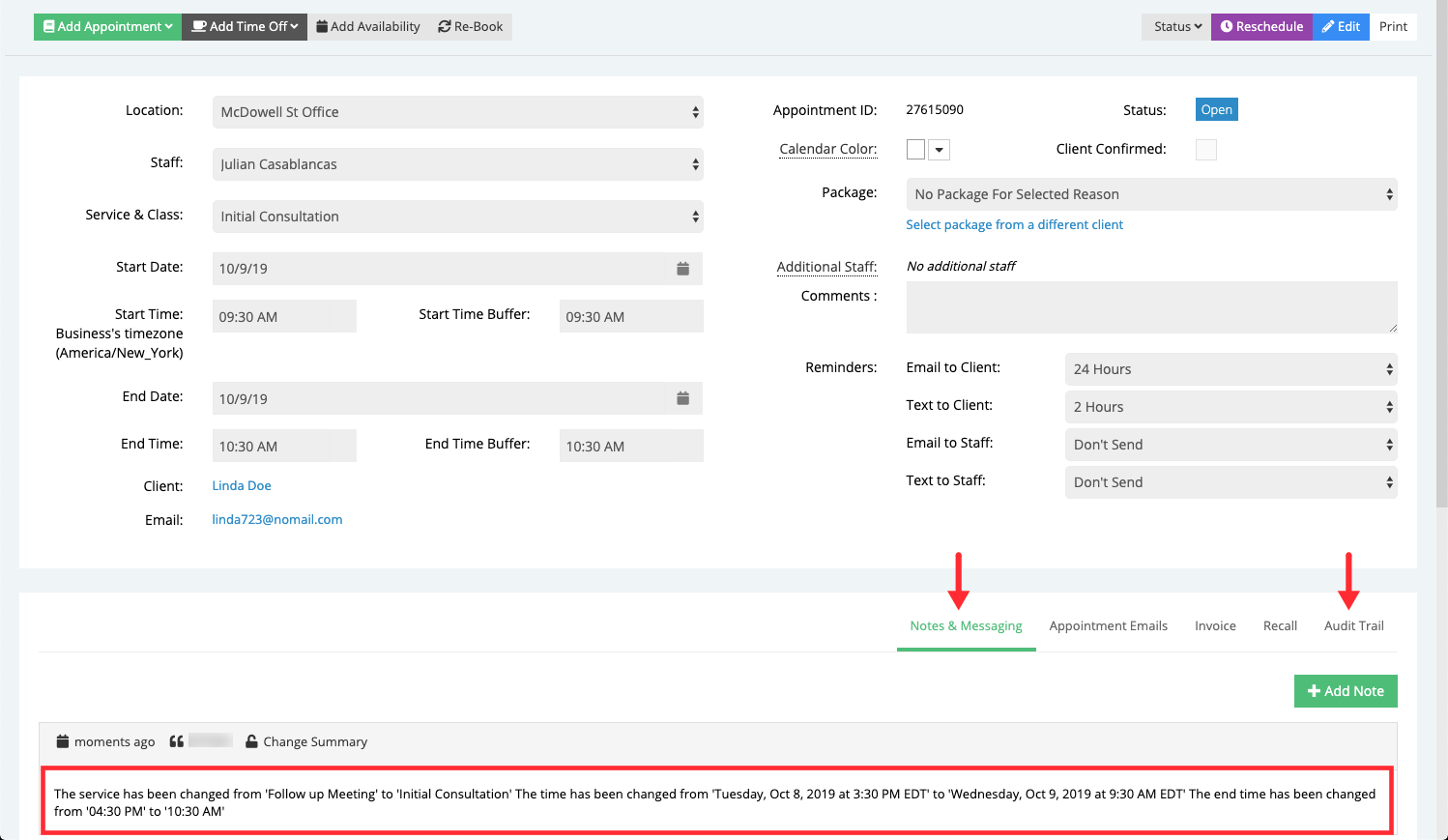
The appointment will now be updated throughout the TimeTap Back Office with the new date, time and service. Whenever I click back into the appointment detail, I'll be able to see exactly when I made the rescheduling changes and be able to reschedule again if I need to.