- Changing the time of the appointment
- Moving the appointment to a different day
- Choosing a different service for the appointment
- Swapping out the client for the appointment
- Updating the comments or the reminders for the appointment
We'll go through each of these items in this section of our documentation site, but on this page we want to talk about when to make certain changes: Editing versus Rescheduling
More on Editing/Rescheduling Appointments
- Editing an Appointment
- Rescheduling an Appointment
- Viewing Audit Trail after Editing
- Changing Clients on an Appointment
When to Edit vs. When to Reschedule
On the appointment detail screen, you'll notice two buttons next to the Mark As button: a blue Edit button and a purple Reschedule button.
You might wonder, "When should I use Edit and when should I use Reschedule?"
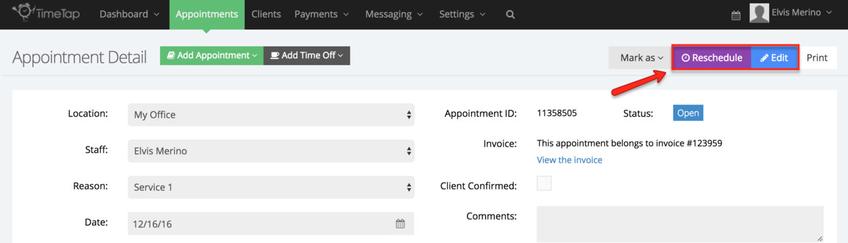
Both buttons let you:
- Change the service
- Change the date
- Change the time
- Send an email with the updated appointment details
However, there are some key differences:
- Use "Reschedule" if you want to see the staff's availability and avoid double booking when moving the appointment time or date
- Use "Edit" if you want to potentially allow double booking with that new date/time or if you need to edit custom fields on the appointment detail page
Most of the time, either button will work, but you may find one more convenient or suitable for your needs.