Creating test appointments is a great way to verify everything is working as expected after making changes to your availability or scheduler, though these test appointments can pile up after a time. Even though you can list them as Cancelled, they don't really fit with that list since they don't accurately reflect the appointments made and cancelled by actual clients with my business. Deleting them instead can prevent these test appointments from skewing any actual appointment or client data for your account.
Appointments cannot be deleted from any other status except for Cancelled. If you want to delete an appointment, first take steps to mark it as Cancelled and then you'll be able to follow the directions below to delete it from your appointment lists.
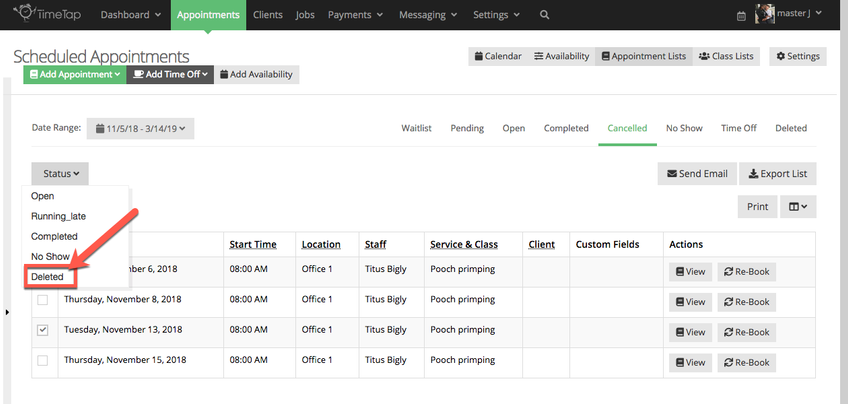
To delete an appointment or a set of appointments, go to Appointments > Appointment Lists > Cancelled and select the appointments to delete using the left hand checkboxes:

After choosing the appointments, select the Status button with the arrow pointing down located at the upper left.
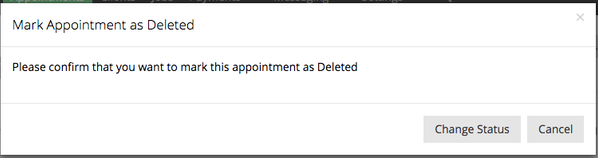
This will display a confirmation window where I can confirm that I'd like to delete the appointments I selected:
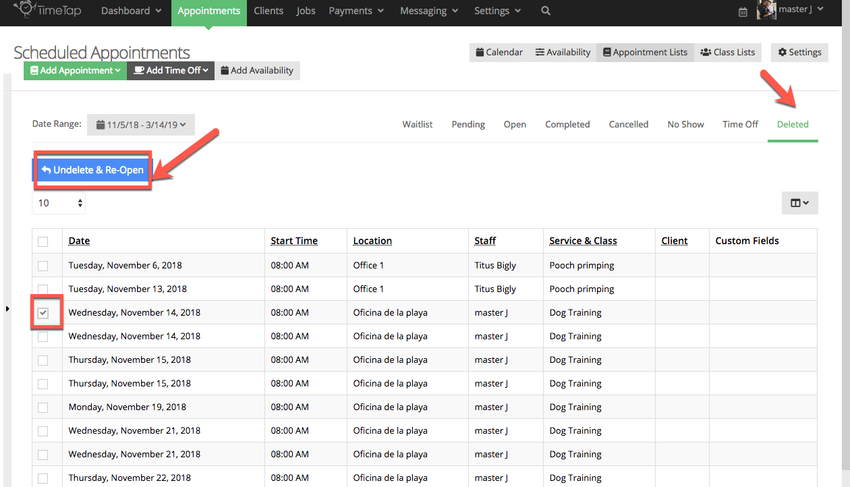
The deleted appointments will then be moved to the list of deleted appointments, where you can re-open them by selecting any of them and clicking the Undelete & Re-Open button: