By default, the client's Appointment Reminder email is set to go out 24 hours before the appointment start time (although you can adjust that under Messaging > Messaging Settings).
This help doc covers:
- Default Appointment Reminder Email Template
- About the Confirm/Decline Buttons in Appointment Reminder Emails
- Setting the Default Timing of the Appointment Reminder Email for the Account
- Adjusting the Timing of the Appointment Reminder Email for Specific Appointments
Default Appointment Reminder Email Template
The text for the default appointment reminder email reads:
Sample Email - Appointment Reminder
About the Confirm/Decline Button in Appointment Reminder Emails
If your client clicks the Confirm button, a new window will open with a message confirming their appointment. They will also have the chance to Reschedule or Cancel the appointment on this page:
If your client clicks the Decline button, a new window will open where they will have the option to Reschedule or Cancel the appointment:
Setting the Default Timing of the Appointment Reminder Email for the Account
The default timing of the Appointment Reminder emails for the overall account can be found and edited under Messaging > Messaging Settings.
Adjusting these settings will only update the default reminder timing that gets applied to all future appointments that are scheduled. Updating these settings will not adjust the reminder timing of any existing appointments that have already been scheduled with the previous reminder settings in place. You can read more about updating the reminder times for existing appointments in bulk in this help doc.
Adjusting the Timing of the Appointment Reminder Email for Specific Appointments
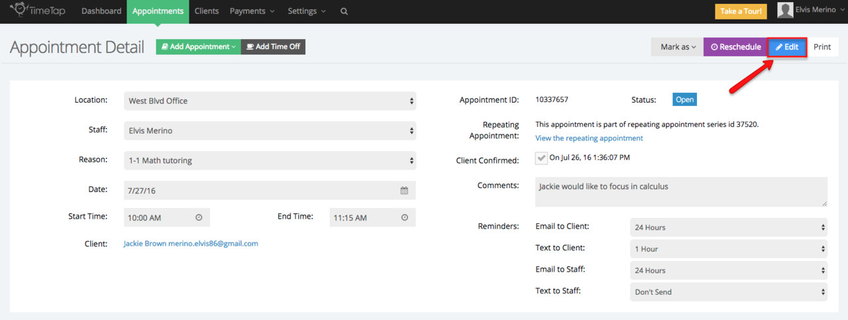
If you want to change the time when a client for a specific appointment is sent their reminder email, navigate to that specific appointment's detail screen then click Edit and take a look at the "Reminders" section is:
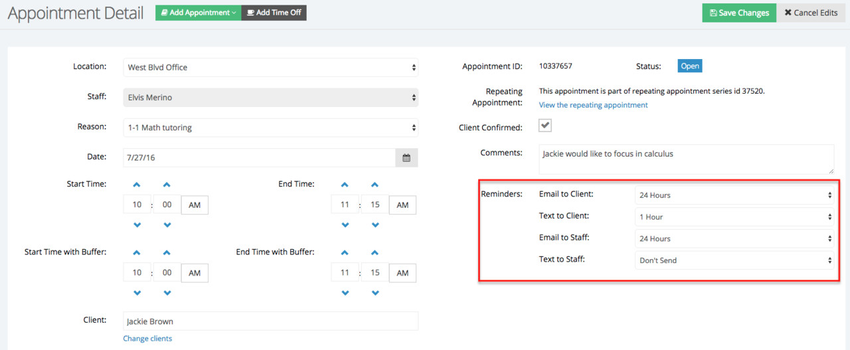
And then take a look at the "Reminders" section:
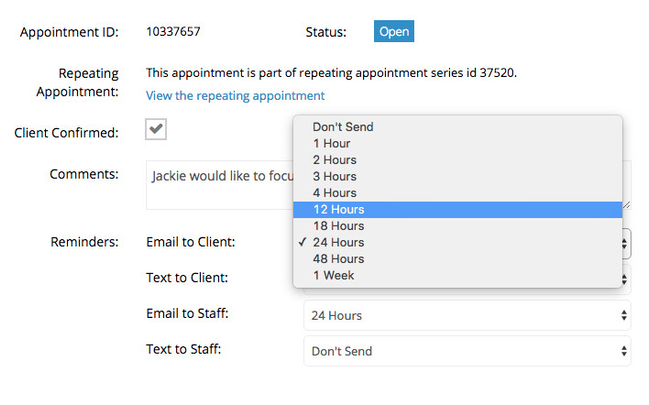
Next to the Email to Client line, switch the default 24 hours to whatever other time increment you want:
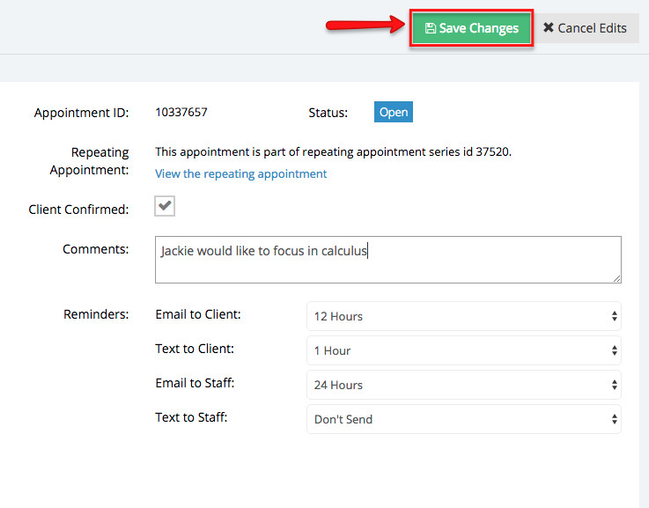
After you have made the change, press the green "Save Changes" button to commit to the update to the hours before the appointment start time that the reminder email is set to go out:
You can choose whether you want to send out another email about this (an appointment edited/rescheduled email template would be delivered to either client and/or staff) or if you'd rather, you can just save without sending any email out to either staff or client.