You've got your availability and the types of appointments you offer added - now before you open the floodgates for your clients to come in and book themselves, you'll probably want to take a quick test run through your scheduler to make sure it looks proper based on what your clients would expect.
To do this, you can go to your mini website and click through the scheduler that sits there. Your mini website can be found in a few different ways -
- You can go to your Mini Website Design page and click on the link at the top of the page.
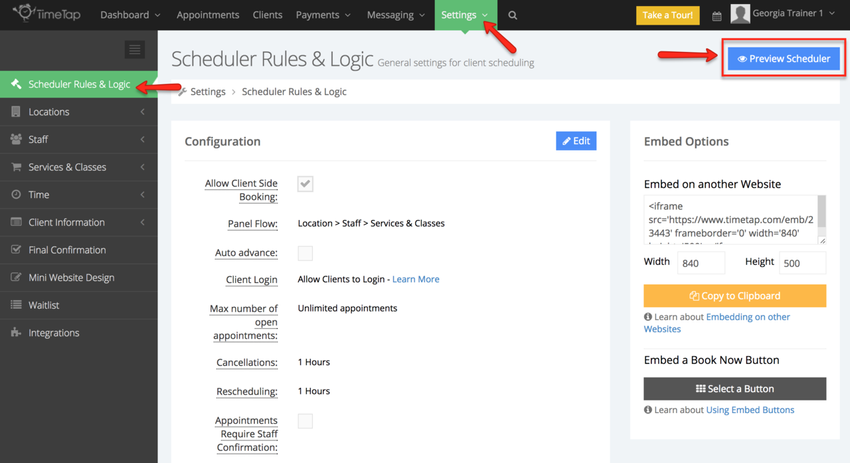
- You can click on the blue Preview Scheduler button available on many of the Settings pages.
- You can go to the Quick Setup Guide and click on either of the links.
In this help doc we'll cover -
- Finding the Mini Website Link from the Mini Website Design Page
- Finding the Mini Website Using the Preview Scheduler Button
- Finding the Mini Website Link from the Quick Setup Guide
- Testing Your Scheduler Flow
Finding the Mini Website Link from the Mini Website Design Page
To get to your mini website from your Mini Website Design page, you'll need to navigate to Settings > Mini Website Design and click on the URL at the top of the page -
Finding the Mini Website Using the Preview Scheduler Button
To get to your mini website using the blue Preview Scheduler button, just be on the lookout for it on any of the Settings pages you're visiting -
Finding the Mini Website Link from the Quick Setup Guide
To get to your mini website from the Quick Setup Guide page, you'll need to navigate to Dashboard > Quick Setup Guide and click on the URL at the top or on the right of the page -
Testing Your Scheduler Flow
Once you have got to your mini website and are looking at your scheduler, you can use the Next buttons to click through the different panels in your booking flow and make sure that your locations, staff and services and the available appointment timeslots are all displaying properly.
Below I will show a quick run through of a basic TimeTap scheduler -
Welcome Screen
Location Panel
Staff Panel
Service & Class Panel
Time Panel
Client Info Panel
Appointment Saved Message
After you have tested your scheduler, you may determine that you want to -
- Change the times that you're set to offer appointments
- Change the information you're requesting from clients
- Change how close to an appointment start time a client can book
- Change how far out in your schedule a client can reserve an appointment
If you want to tweak any of these things, you'll need to visit the hyperlink associated with it to learn how to do so.