We’ve recently made some updates to our password requirements in an effort to boost platform security. Going forward, staff passwords for Backoffice logins must be at least 8 characters with a number, symbol, upper case and lower case letter.
It's easy to reset the password you use to log in to your TimeTap Backoffice account, or the passwords of other staff if you're an Admin or Account Owner. You'll just need to follow the instructions provided below.
In this help doc we'll cover -
How to Update Your Own Password
To update your own password, you'll need to click on your staff name on the upper right and select My Profile from the dropdown menu that appears -
This will take you to your staff profile. From here you'll need to click on the Change Password button found on the left under your picture -
That causes a small window to appear where you'll have to provide your current password and enter a new password, confirm that new password and then click on the green Save New Password button -
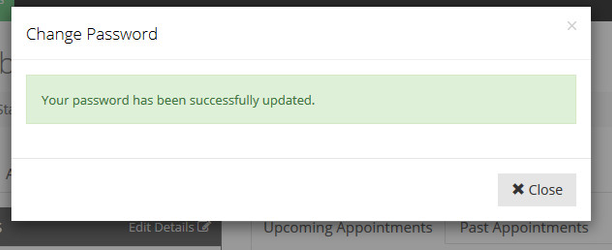
Once you click on Save New Password a confirmation message will pop up -
And next time you log in to your account you will use this new password.
How to Update the Password of Another Staff on Your Account
If you're an Account Owner or Administrator on a Team subscription, you can change any of your staff's passwords. You'll just need to navigate to Settings > Staff > click on the View button next to the staff whose password you want to change -
While on the staff profile, you'll need to click on the Change Password button located below the staff's name and picture -
This causes a small window to appear where you'll have to provide your current password and enter a new password, confirm that new password and then click on the green Save New Password button -
If the staff is logged in at the time the password is changed, they will get logged out automatically and will only be able to log in to their account using the updated password.