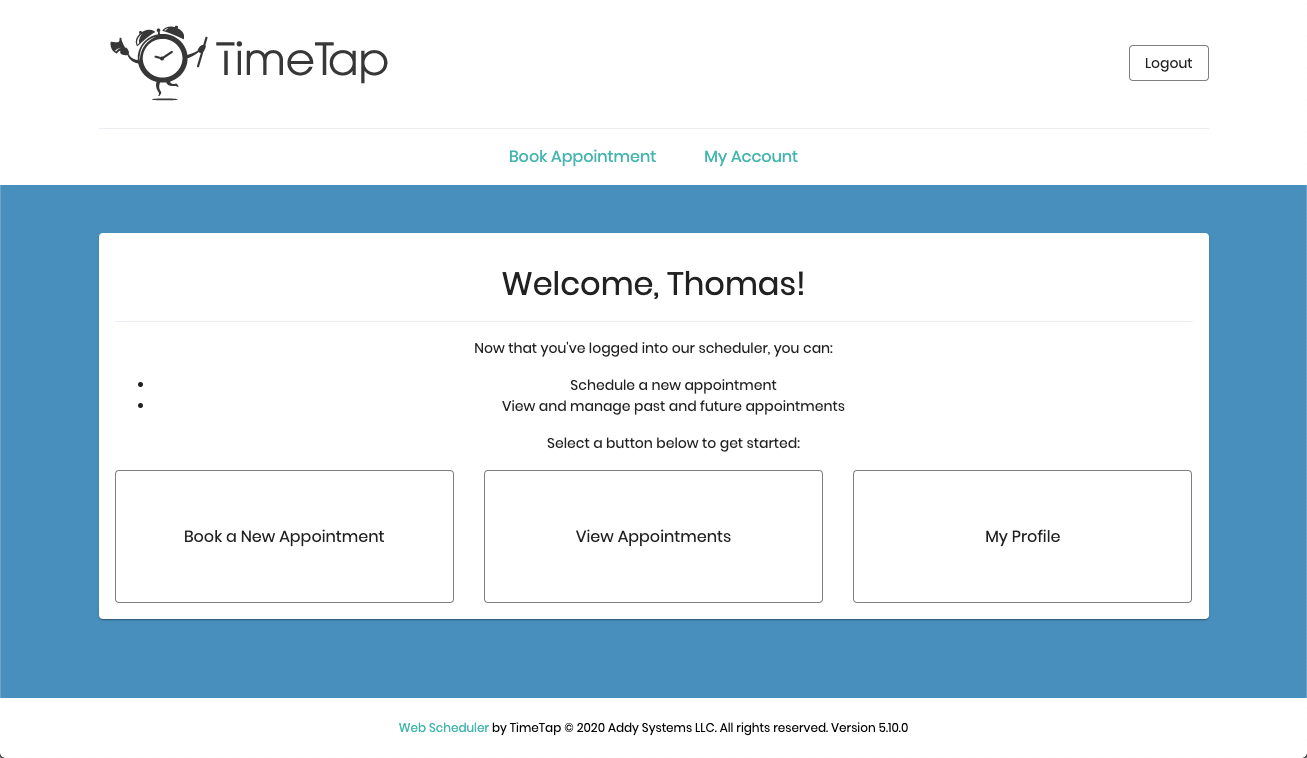
How you register for the scheduler depends on whether you're a first-time or returning client.
Choose the option that fits you:
Registering as a First-Time Client
If you are a first time client who hasn't made appointments through this business's online scheduling system in the past, you may want to consider registering for the scheduler.
Registering gives you a few benefits:
View your appointment history
Skip re-entering your details each time you book
Easily reschedule or cancel appointments
How to Register:
-
On the scheduler’s Welcome page, click the “Register” button.
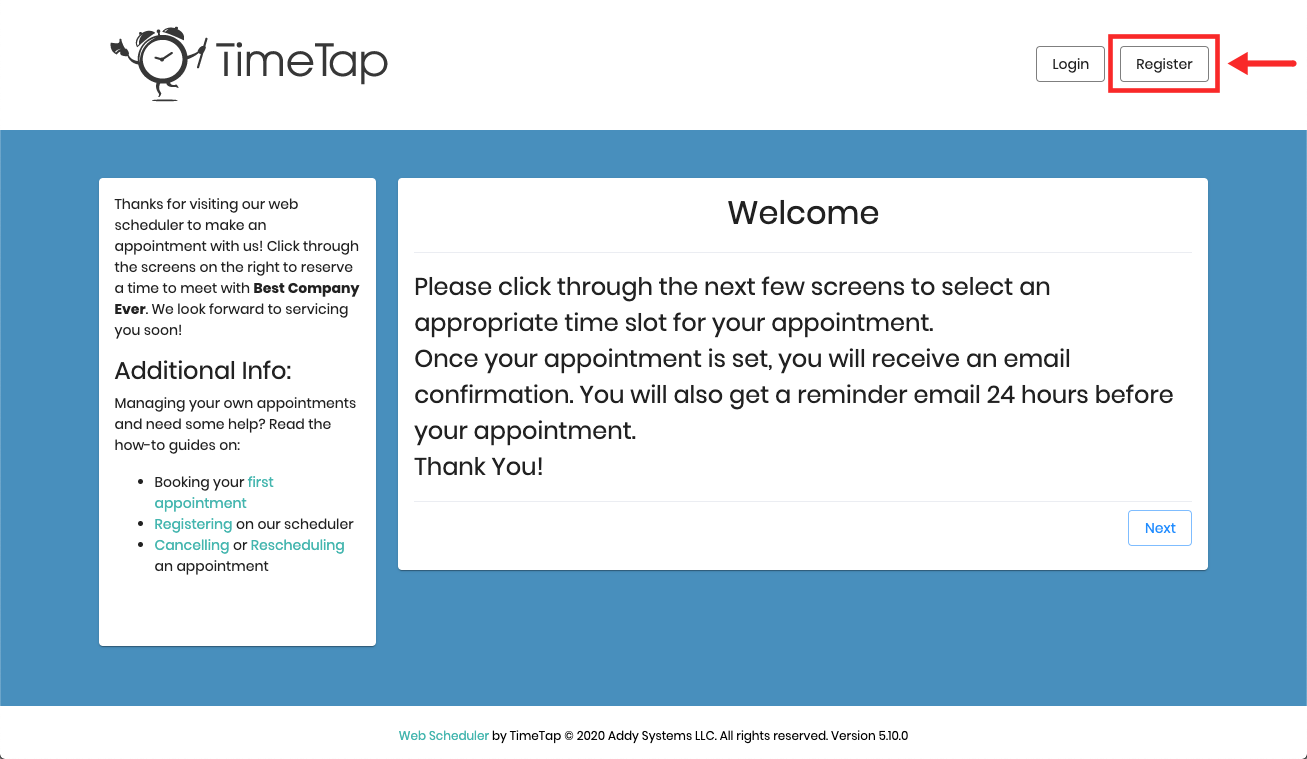
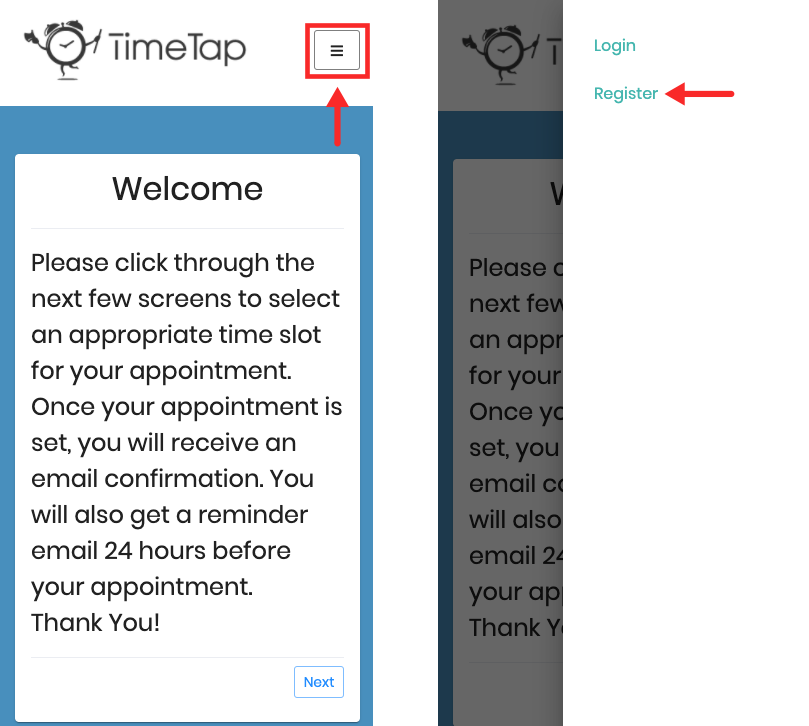
On mobile, tap the menu icon (☰) in the top-right corner to find the option.
Some businesses may disable registration and login. If you don’t see the “Register” option, it means this business doesn’t allow clients to create accounts.
- Enter your email address, then click “Check Email”.
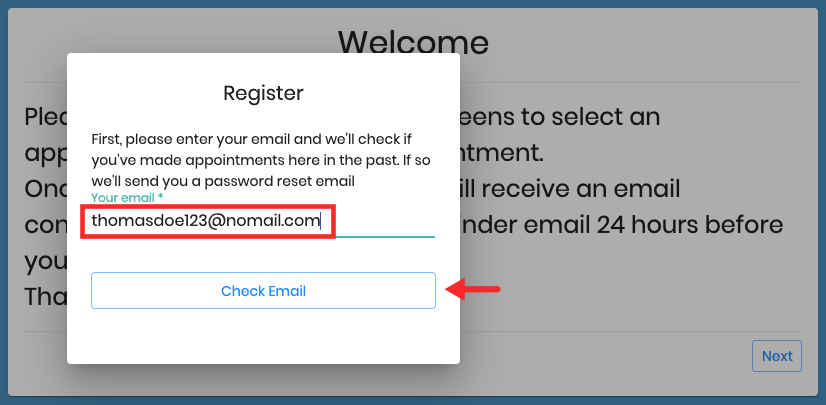
- We’ll check if you already have a client profile for the account that matches that email (for example, if the business pre-registered you).
- If you do, we’ll send a password reset email instead of creating a new account.
-
If you’re new, you’ll be prompted to:
Enter your name
Set a password
Provide any required contact information
Be sure to scroll down and complete all required fields. Then click “Register” to finish.
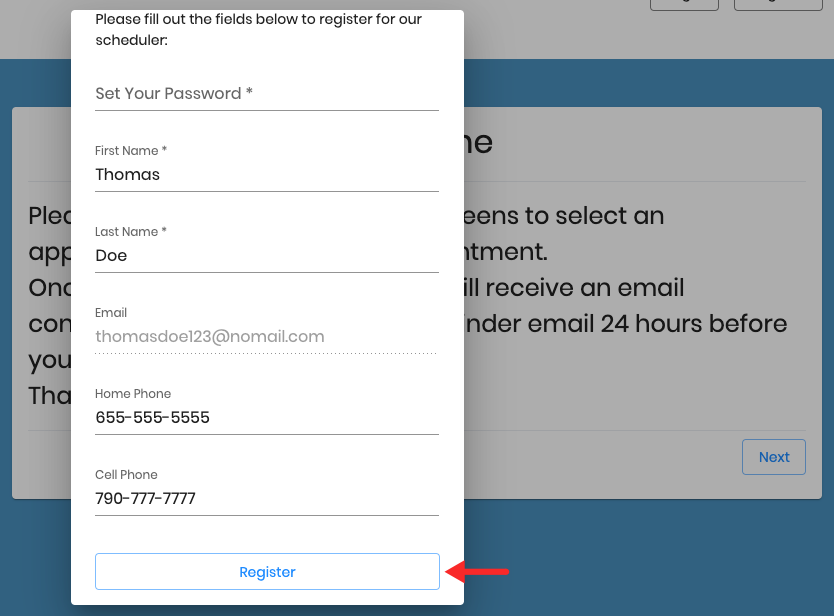
- Once registered, you’ll be automatically logged in and taken to the scheduler. You can now click “Book a New Appointment” to get started.
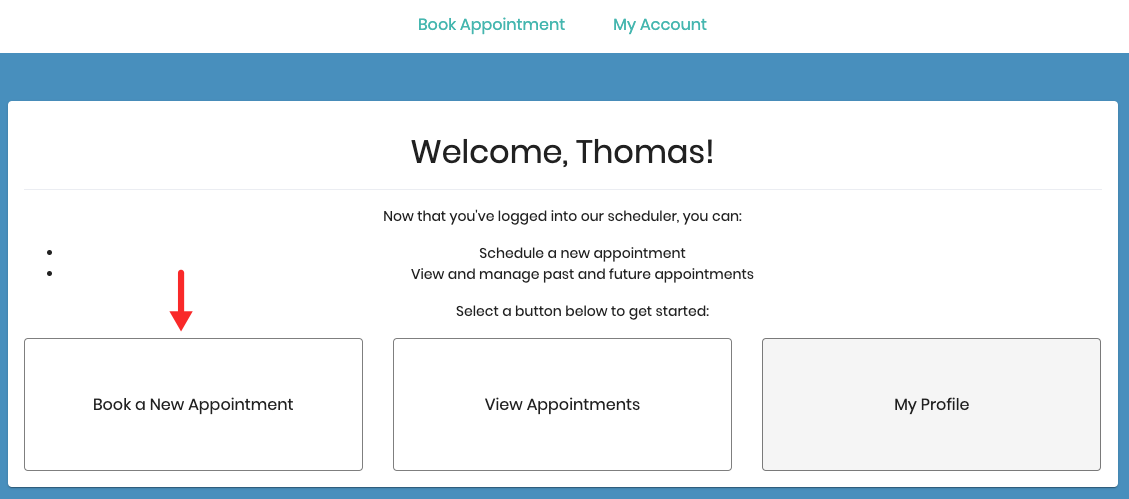
This will take you through the flow of booking an appointment with the business (that's very similar to what you would see if you just booked an appointment first instead of registering)
Registering as a Returning Client
If you’ve booked online with this business before, your email address is likely already linked to an account, even if you’ve never set a password.
To create a log in and access your appointment history or book without re-entering your info:
Click the “Register” button on the scheduler.
Enter your email address, then click “Check Email.”
-
If your email is already in the system, you’ll see a message:
“Looks like you’ve been here before! We’ve sent you an email to set a password for the scheduler.”

- Open the email and click the link to create a password.
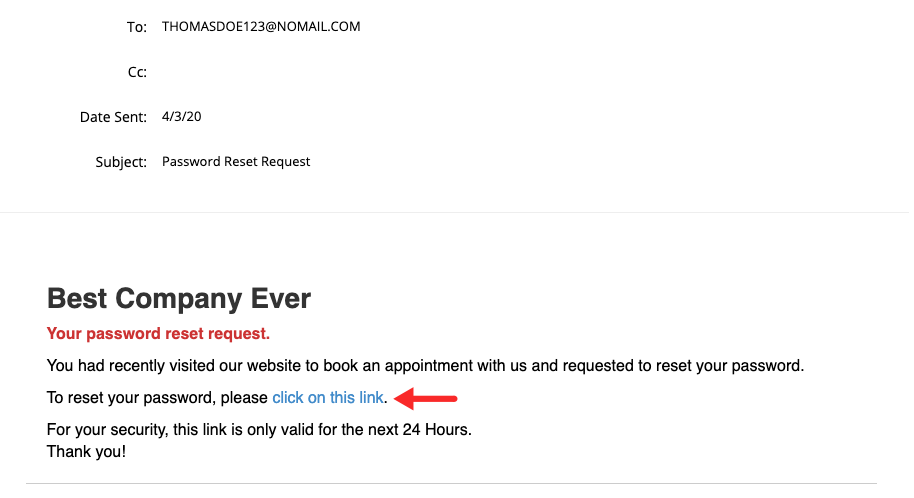
Return to the scheduler, select the Login button, and proceed using your email and new password.
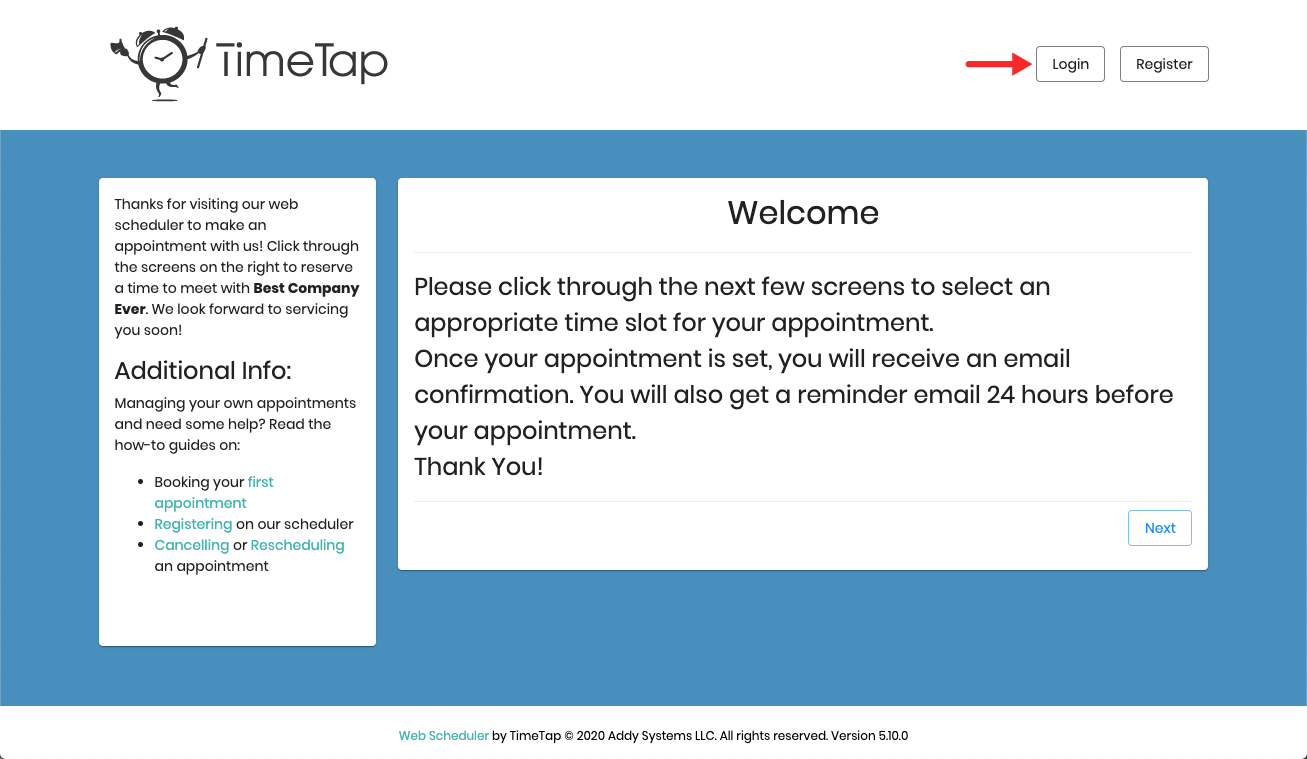
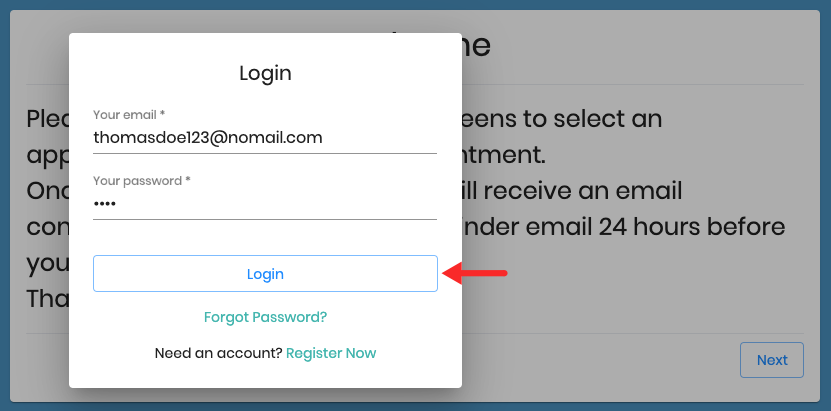
Once logged in, you'll be able to:
Book new appointments
View or update existing appointments
Edit your contact details
Log out when you’re done