The Calculate Travel Times feature helps staff who travel between locations by factoring in travel time needed between existing appointments when offering new appointment times, either to clients scheduling through your booking site or to staff creating appointments in the Backoffice. This ensures that staff have enough time to get from one appointment to the next without being booked too closely.
This page explains the basic logic that controls the travel time calculations. Check out these other pages that illustrate how this feature plays out when booking through the Client Scheduler or Backoffice.
- Enabling Travel Time Calculations
- About Intelligent Travel Time Calculation
-
Important Notes & Limitations
Enabling Travel Time Calculations
- Go to Settings > Time > Service Time Display
- Enable the Calculate Travel Times checkbox
- Save Changes
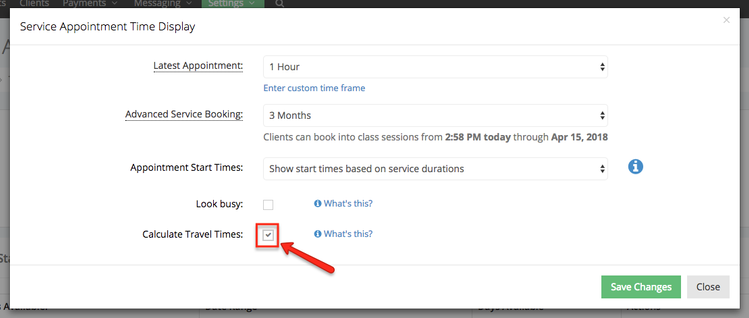
The Calculate Travel Times setting controls the behavior for whole account. Once enabled, TimeTap will automatically evaluate existing appointments and use travel time calculations to determine when the staff member is realistically available for a new appointment.
You can also find a mirrored version of this checkbox under Settings > Scheduler Rules & Logic.
About Intelligent Travel Time Calculation
Using the addresses associated with each appointment's location, TimeTap automatically calculates the average travel time between appointments rounded to the nearest 5 mins using Google Maps, and uses that time to decide which new appointment times should be presented.
It's important to note that this feature doesn’t create a separate travel event or explicitly block off time on the staff’s schedule. Instead, it dynamically adjusts the available new appointment times shown during scheduling, ensuring only time slots that allow for adequate travel to and from the existing appointments are offered. This makes it possible to fill openings between appointments more efficiently. If the travel time for a a new appointment still allows for enough time to make it from/to any existing appointments before or after, that time slot in between will show as available for booking.
If a profile does not have an address populated, then no travel time can be calculated for, to, and from appointments scheduled at that location.
Address Referenced by Location Type
Physical → Location Address (static address from location profile)
Variable → Appointment Address (dynamic address entered at the time of booking)
Start of Day/Availability Resumes* → Default Address (static address from staff profile)
Virtual* → Default Address (static address from staff profile)
*Use of the Default Address field for Start of Day and Virtual Location address calculation requires your account to be running our newest availability model. This has gradually been enabled for specific accounts up to this point, but will eventually be rolled out for all accounts. If your account has not been migrated to using new availability yet (or if you're unsure), please reach out to support to request this be enabled.
Inbound/Outbound Buffers
On top of the dynamic calculations for the addresses, you can also add Inbound and Outbound Buffers to physical and variable-type location profiles.
These hard-coded inbound/outbound durations are added to the Start Time and End Time Buffers for the appointment (combined with any applicable service buffers) to account for things like walking to a car or parking, and they effectively shift the staff’s availability start and end time around appointments at that location.
These buffers are separate from the travel time that calculated through Google, but still are part of the logic that decides which appointment start times are offered to your clients.
Important Notes & Limitations
- The Location panel must be included in the booking flow in order to calculate travel times through the Client Scheduler.
- Using the "Default Address" for "start of day" availability or virtual location will not work for First Available/No Preference bookings, where no specific staff is selected, or configurations where the Time panel has to display times across multiple staff member's availabilities.
- The most accurate travel time calculations require that your account be set to reference our most recent availability model. This update has gradually been enabled for specific accounts, but will eventually be rolled out for all accounts at a future date. If your account has not been migrated to using new availability yet (or if you're unsure) and your account relies on travel time calculation, please reach out to support to request this be enabled.
- Travel time calculations are not compatible with Time Offs or external calendar events. Both of those event types only block off their scheduled times, and there is no address associated with those event types. Due to this limitation, TimeTap will allow booking immediately before/after those events following the usual availability logic.