A client profile is created either when you, as a user, add the client or when the client books an appointment. So as long as all the fields on these records match one another, only 1 client profile will be created and all appointments and payment history will attach itself to that record.
More than likely, however, at least some of your clients will end up typing in something slightly different each time they make an appointment, which will create more than 1 record for that client. If this is the case, you can merge the duplicate clients, and in this documentation we will show you how you can do this.
First click on the Clients tab on the top navigation bar -
Once in the clients menu, check the boxes to the left of the names of the clients you would like to merge. If you do not see the clients initially, try using the search bar to narrow down your results -

With the client profiles you want to merge selected, click on the More Options dropdown and then select Merge Clients from the choices that appear -
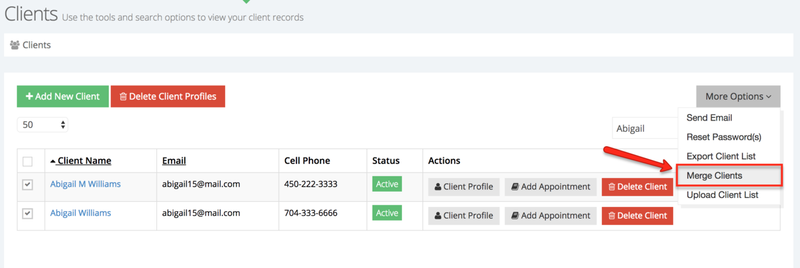
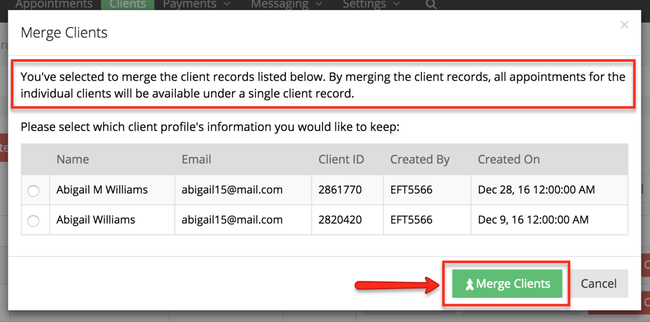
When merging client records, you are copying all appointments, messages, invoices, and payment records from multiple client record(s) to a single client record. After the appointments have been merged to the single client record, the merged client profiles will be deleted from the account and only the parent one with all the appointments, messages, and payment history will remain. Once you click on the Merge Clients button, you will see the merge client pop up box which will let you select which record you want to keep -
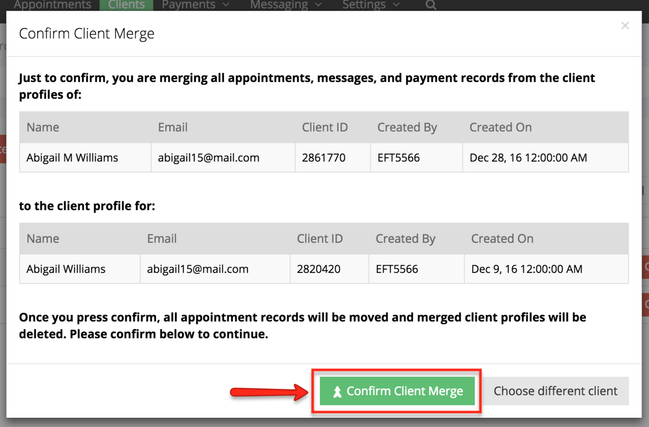
After you click to merge, you will get a confirmation message which will allow you to confirm the actions you are taking. Click on the green Confirm Client Merge button and you'll see all client records merge to the parent profile -
After the client records have been merged, only the client profile you chose to keep will appear in the client list.