Adding repeating appointments for class sessions is similar to adding repeating appointments for services, with a few additional steps specific to managing group sessions. This guide will walk you through the process, highlighting the differences where applicable.
To add a repeating appointment series for a class, you'll need to do the following -
- Add Appointments > Add Repeating Appointments
- Start by clicking on the green Add Appointment button and selecting Add Repeating Appointments from the dropdown menu that appears -
- Start by clicking on the green Add Appointment button and selecting Add Repeating Appointments from the dropdown menu that appears -
- Enter Appointment Information
- On the next page you'll need to fill in the main details (Location, Staff, Reason) for the appointment.
- Choose a client and specify the number of seats they will occupy. If a client is bringing additional people (e.g., a spouse, family member, or friend), adjust the number of seats accordingly and TimeTap will reduce the class's maximum capacity by that number -
- Set the Date Range and Frequency
- Select the day for the series to start on.
- Choose whether this series ends on a specific date or repeats on an ongoing basis.
- For appointments with no end date, TimeTap schedules them as far out as your Advanced Appointment setting allows, automatically adding more appointments as time goes on.
- Set the frequency (weekly or monthly) and select the day(s) of the week (e.g., Wednesday).
- After selecting the days of the week, you will see the scheduled class sessions available on that day of the week for you to choose for this series
- Review and Adjust Appointments:
- The Summary of Appointments table will display all appointment dates in the series based on the set date range and frequency.
For classes, you can select or deselect specific dates in the "Summary of appointments" field. For example, deselecting the appointment on October 28 will exclude it from the series.
If you later make changes to a class session’s date and apply changes to all following appointments, any future appointments in that series that were previously deselected when being created may be re-added.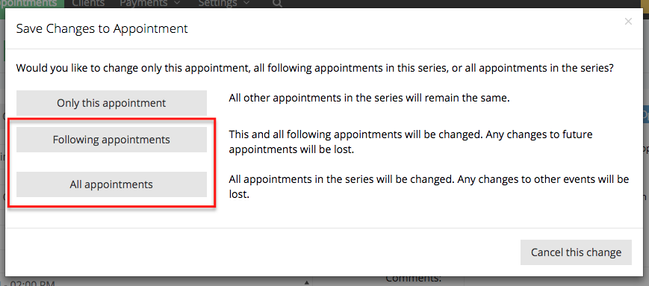
- Save the Appointment
- Click on the green Save Repeating Appointments button.
- You’ll be prompted to send an email notification about these new appointments. By default, email checkboxes are unselected for new users, but TimeTap remembers previous selections for returning users so it will stay enabled after you check the boxes.
- Click on the green Save Repeating Appointments button again to finish creating the appointment series -
Once you've saved the appointment, you will be taken to the repeating appointment details page where you can see all the individual appointments in the series under the Related Appointments tab -
You're also able to edit and manage the repeating appointment series from this page.