In this page we will cover how to embed a video in the Final Confirmation panel of your scheduler, you can also choose to embed a video can also in the Greeting panel.
A video is helpful if you would like for your clients to watch a video before arriving to your office. Almost all video hosting web sites provide you with a embed code, in the example below we will assume our video is hosted in YouTube.
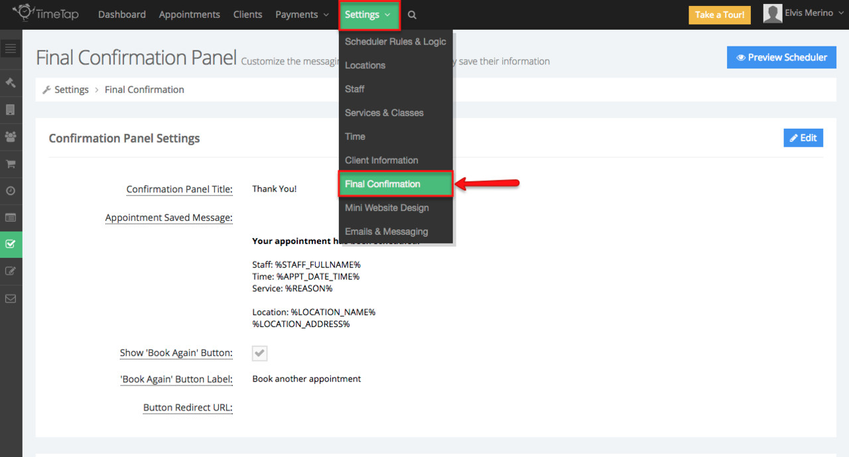
Start by going to Settings > Final Confirmation:
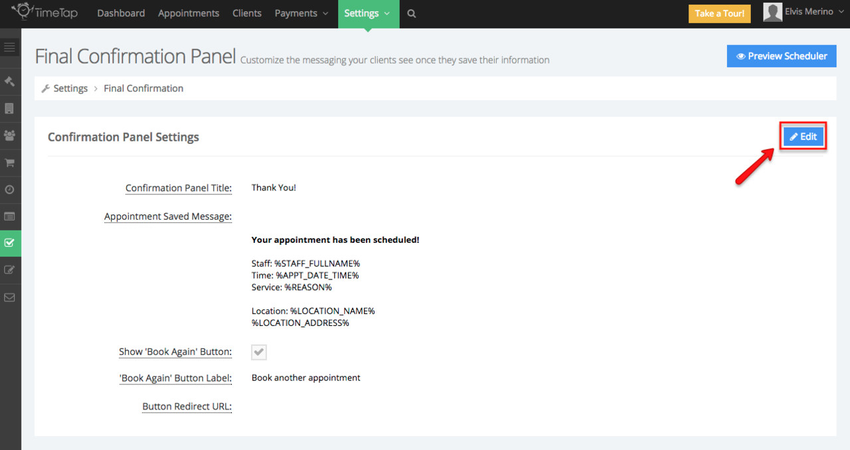
Once in the Final Confirmation click the Edit button in the Confirmation Panel Settings:
The video will be in the Appointment Saved Message, this is the message that appears once the appointment has been booked by your clients:
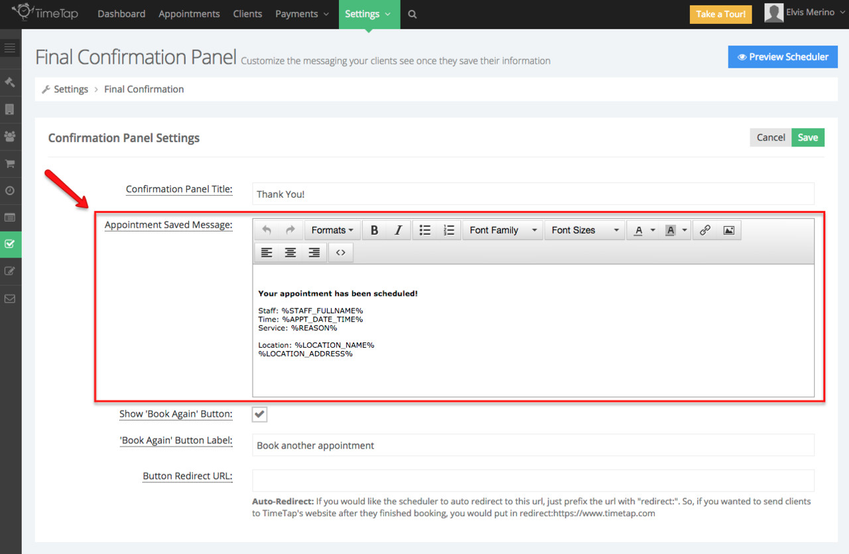
While adding a video is a great feature, I will want to provide my clients with information about the appointment they just booked. Therefore I will leave the defaults tags in this section, the video will be added below all the information.
While in the Appointments Saved Message section click the source code button:
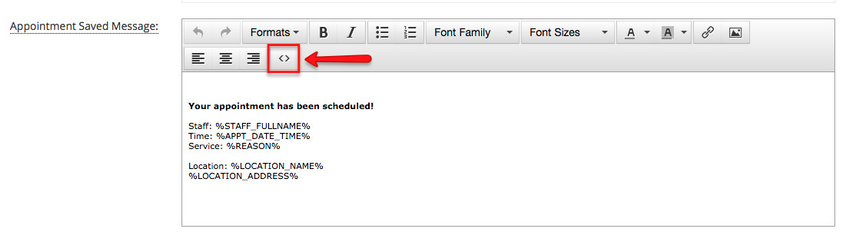
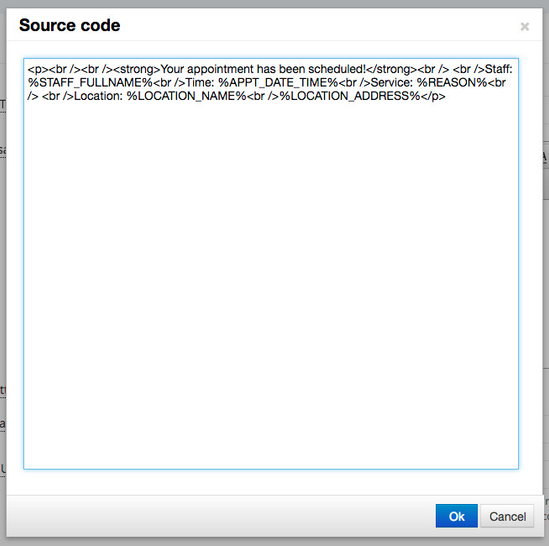
This will bring up the Source Code window:
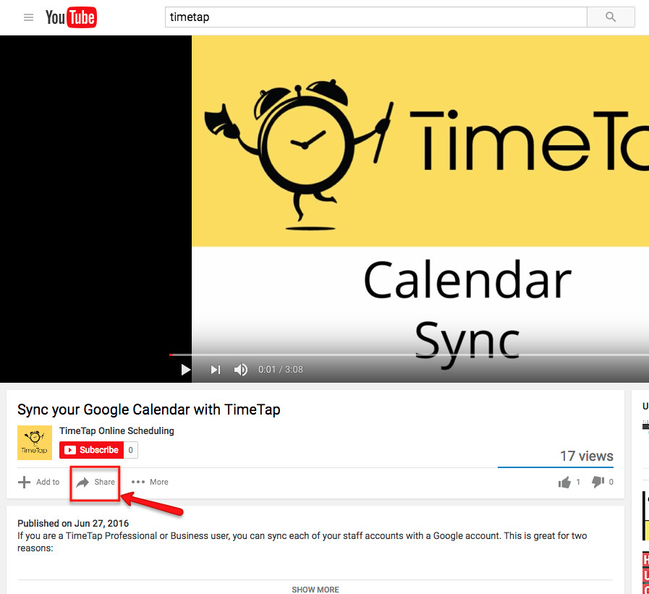
Now we will go to Youtube and locate the video we want to upload and click the Share tab:
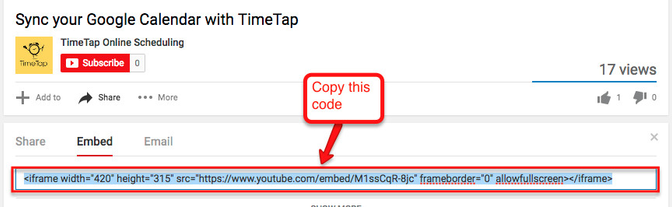
While still in the Share, click Embed and copy the code in the box:
With the embed code in our clipboard, we now go back to TimeTap and paste the code in the Source Code window:
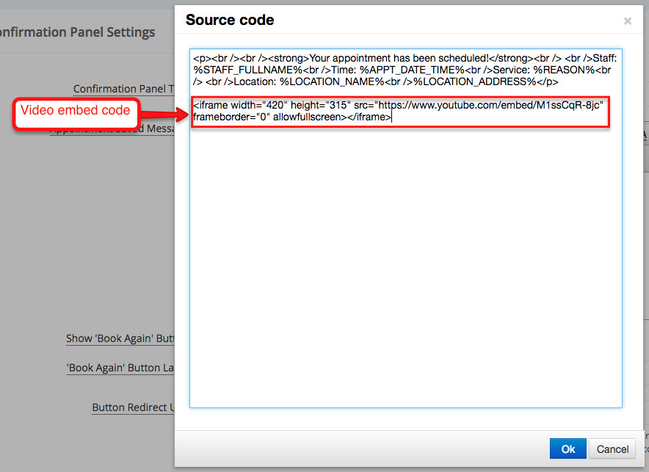
Once you've pasted the code, click OK:
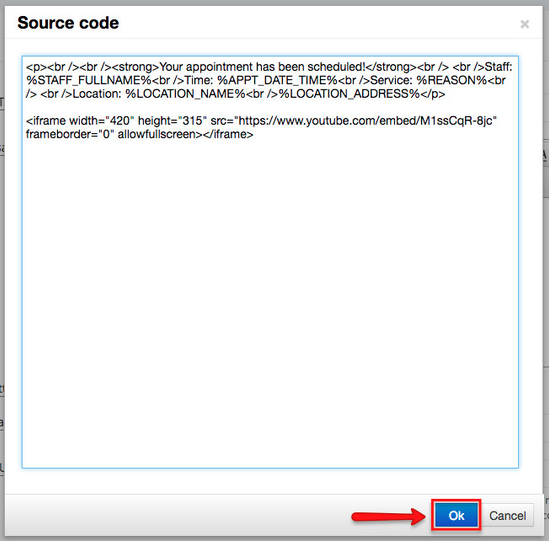
After you click the OK button the Source Code window will close and you will taken back to the Final Confirmation Panel screen, click Save to commit to the changes:
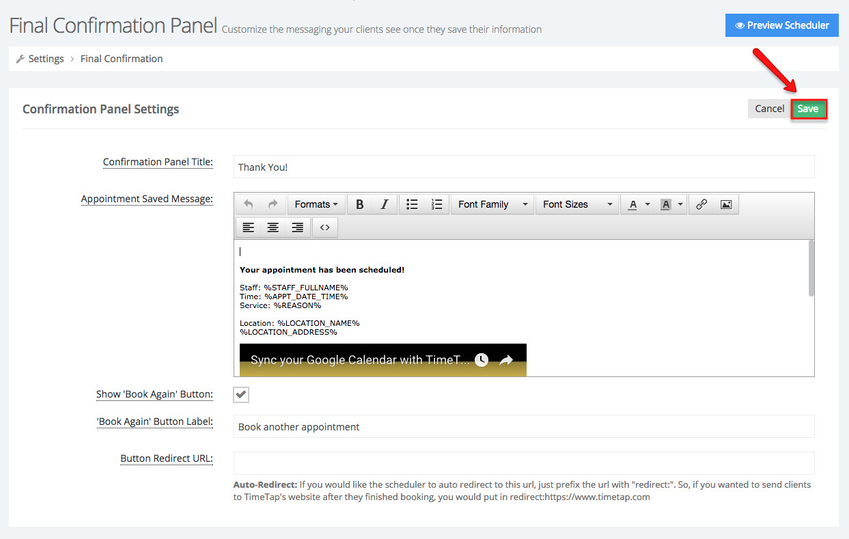
Now this is a good time to see how the video looks in the scheduler, click the Preview Scheduler and book a test appointment:
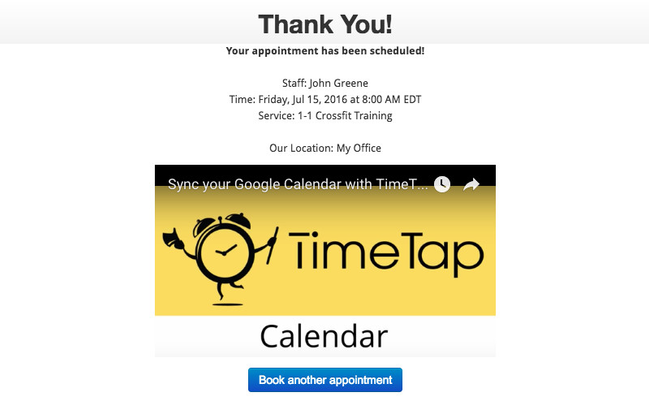
Now every time a client books an appointment they can choose to play the video in the Final Panel.