Syncing your TimeTap calendar to your Outloook calendar will allow you to -
- See all of your TimeTap appointments on your Outlook calendar.
- Sync any of your Outlook appointments where you are listed as "Busy" to TimeTap and block your availability so that no clients can book with you during that time.
- Add appointments to an Outlook calendar that you and your colleagues can contribute to.
- Sync appointments to multiple Outlook calendars and sub-calendars.
In this help doc we'll cover -
From the staff profile, go to the Calendar Sync tab and click on the Outlook.com icon -
You'll get taken to a gateway hosted by Cronofy, the 3rd-party app we use to host a few of our calendar syncs. Select Outlook.com from this gateway -
You'll need to agree to Cronofy's terms of service by checking the box next to "I agree", and then click on the black Link Outlook.com Account button -
You will next get prompted to log in to your Outlook account in order to authorize that TimeTap can access your calendar -
Once you authorize, you'll be taken back to TimeTap, and your sync will start to run. The first sync typically takes about 30 minutes to complete. After that the calendars update automatically about every 15-20 minutes.
Once you've clicked on the View Feed button a new window will appear, informing you of the most recent appointments that have synced over from your Outlook calendar. In the example below, you can see that no events have synced over from my Outlook calendar yet -
The table shown in the window that pops up is broken down into 6 columns, each showing a different piece of information -
- ID - This is the ID assigned to this appointment in TimeTap - you can use this number to search for this specific appointment in TimeTap.
- Starts at - This is the time and date the appointment is set to begin.
- Ends at - This is the time and date the appointment is set to end.
- Subject - This is the information stored in the subject field of your Outlook calendar at the time the appointment was created.
- Loaded - This lets you know if the appointment was successfully loaded into TimeTap or not.
- Info -
- If the appointment has been loaded, this will tell you the last time the appointment was updated in Outlook.
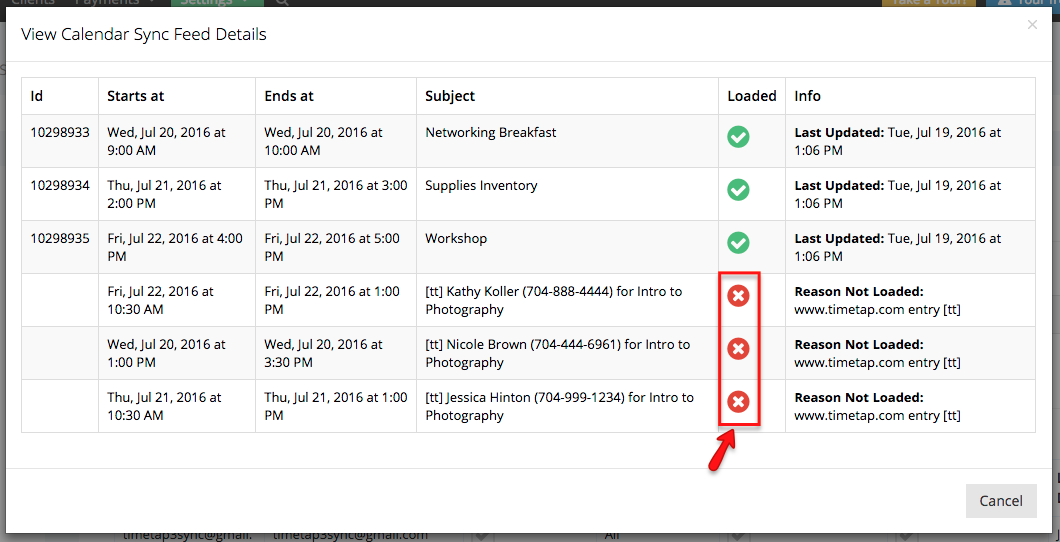
- If the appointment has not been loaded (i.e., it is a TimeTap appointment or it is a Outlook appointment which you are listed as "Available" for), this section will tell you why it wasn't loaded.
If you are viewing your appointment sync feed and you see a red circle with a white x in the Loaded column, don't panic! This just means that the appointment had synced to your Outlook calendar and when Outlook sent information to sync your TimeTap account, TimeTap rejected the appointment because it was already on your calendar or because it was a Outlook appointment where you are listed as "Available" -
Here is a close up -
The [ext] just means that this appointment is coming from an external calendar source. If you click on it, you will get taken to the appointment profile -
If you need to make changes to the Outlook appointment, you'll need to log in into the associated Outlook account to make those changes. If you try to make changes to an Outlook appointment from TimeTap, you will get an error message saying that you cannot make changes to that appointment -
Here is a close up -
If you open the appointment up in Outlook, you'll see that TimeTap gets listed as the source for the appointment -
It is recommended that you do not make any changes to TimeTap appointments from Outlook. While Outlook will allow you to do so, it will likely result in more confusion than anything. We recommend that if you need to make any changes to TimeTap appointments that you log in to TimeTap to make those changes.
A window will pop up prompting you to confirm that you want to stop syncing. You'll want to click on the red Yes, I want to stop syncing with this account button -
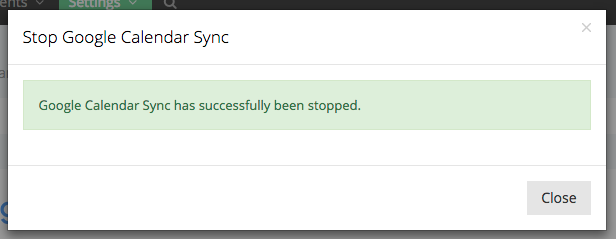
And you'll see a brief confirmation message -
The Calendar Sync tab on your staff profile will return to how it appeared before you initiated the calendar sync -