When first syncing to your external calendar, TimeTap will try to connect with the first calendar in your list from that account. However, you can also set up additional calendar syncs with other calendars from within that synced account, and you can always unsync from your external calendar.
In this help doc we'll cover -
How to Remove an Existing Calendar
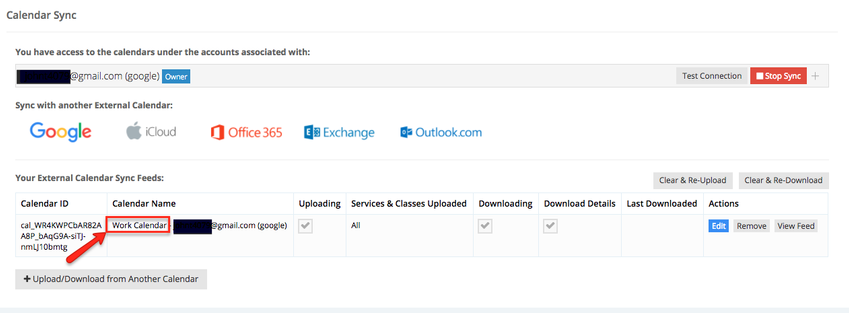
After the initial syncing process completes, TimeTap will sync with the selected calendar, and you should get taken back to the Calendar Sync tab on your staff profile. In the image shown below, you can see that we have set up a calendar sync with our personal Google Calendar -
It is possible to have multiple external calendar sync feeds set up to communicate with different calendars from your account at the same time. If you wish to keep the default calendar sync feed connected but want to stop syncing to that particular calendar, then you can use the Remove button in the Actions column of that calendar feed -
This will make it so that all appointments downloaded from that calendar will be removed from TimeTap.
Connect a Different Calendar
To sync with a new calendar feed from that same account, you'll need to click on the Upload/Download from Another Calendar button -
A new window will pop up where you can select which specific calendar from the synced account you want to sync with your TimeTap account. You'll want to select the new calendar and then click on the green Save New Sync Details button -
After the change is saved, your new sync feed will appear in the Your External Calendar Sync Feeds section of your staff profile -
The syncing process may take up to 15-20 minutes to complete after the new calendar has been added.