If you are on a TimeTap Professional Team or TimeTap Business Team account you can grant other users access to upload their TimeTap appointments to your Google Calendar.
In this help doc we'll cover -
From the staff profile you'll need to click on the Calendar Sync tab -
On the Calendar Sync page you will see the email account you're currently syncing to, in this case Staff 1 Google Sync. To grant another user access to this Google account you'll need to click on the plus symbol next to the red Stop Sync button -
You will see a list of all staff members who are allowed to accept appointments -
Select the staff who you want contributing to your Google Calendar by checking the box next to their name and then click on the green Save Updates button. In this case, I only want to allow Staff 2 to contribute to my external calendar -
Now that I've granted access to this user, I will go to another staff's profile and click on the Calendar Sync tab on their staff profile -
Once on this staff's Google Sync page, I can see which Google accounts they have access to sync with -
You can see that in addition to the Staff 2 Google Sync, they now have access to the Staff 1 Google Sync that I just added them to. Now click on the Upload/Download from Another Calendar button -
A new window will appear, and here you will be able to modify a few things before you finalize the Google sync process -
- This is the Google account this staff member has been granted access to.
- This is a list of all calendars associated with the Google account selected in step 1. These are typically calendars created within your Google calendar or calendars other people have shared with you.
- Check this box to upload all appointments set in TimeTap for this staff to the selected Google Calendar.
- Check off which reasons you want to sync up to your Google Calendar (most of our users have all of them selected but you can pick and choose if you'd like).
- For service-based appointments only - This is the title of the TimeTap appointment once it appears as an appointment in Google Calendar. If you leave it blank, it will display the client's name, phone number and reason, or you can use our email tags to display information of your choice.
- For class-based appointments only - This is the title of the TimeTap class session once it appears as a class session in Google Calendar. If you leave it blank, it will display the client's name, phone number and reason, or you can use our email tags to display information of your choice.
- This is what displays as the event location once this event appears in Google Calendar. If you leave it blank, it will display the location name.
- For service-based appointments only - Once the TimeTap appointment gets added in the synced calendar, this is what would appear as the appointment's description. If you leave it blank, it will display the client's details and any custom fields information, or you can use our email tags to display information of your choice.
- For class-based appointments only - Once the TimeTap appointment gets added in the synced calendar, this is what would appear as the class session description. If you leave it blank, it will display the client's details and any custom fields information, or you can use our email tags to display information of your choice.
- Here you can set how long before the event start time you want your external calendar to remind you about the event.
- Check this box to download all appointments from the Google Calendar you've selected to the staff member's TimeTap calendar.
- Check this box to allow this user to download the appointment details from the Google Calendar you have granted access to.
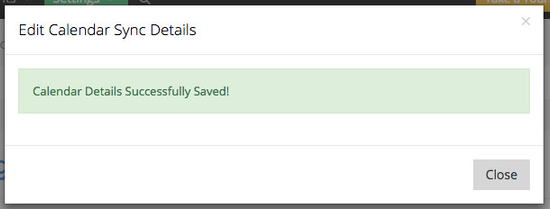
Since we want this user's TimeTap appointments to upload to my Google Calendar and we want all the existing Google Calendar events to download to their TimeTap calendar, I will set up the sync to allow for both uploading to and downloading from the calendar that shows all of Staff 1's scheduled appointments, which is now part of the Staff 2 Google Sync account. Once I click on the green Save New Sync Details button a small message will appear -
Now when this staff member goes to check their TimeTap calendar, they will see their appointments along with the appointments that are assigned to Staff 1 (you can see how I have set different colors for both staff to illustrate this) -
From the staff profile you'll need to click on the Calendar Sync tab -
On the Calendar Sync page you will see the email account you're currently syncing to, in this case Staff 1 Google Sync. To grant another user access to this Google account you'll need to click on the plus symbol next to the red Stop Sync button -
You will see a list of all staff members who are allowed to take appointments -
Select the staff who you want contributing to your Google Calendar by checking the box next to their name and then click on the green Save Updates button. In this case, I only want to allow Staff 2 to contribute to my external calendar -
Now that I've granted access to this user, I will go to this staff's profile and click on the Calendar Sync tab on their staff profile -
Once on this staff's Google Sync page, I can see which Google accounts they have access to sync with -
You can see that in addition to the Staff 2 Google Sync, they have access to the Staff 1 Google Sync that I have added them to. Now click on the Upload/Download from Another Google Calendar button -
A new window will appear, and here you will be able to modify a few things before you finalize the Google sync process -
- This is the Google account this staff member has been granted access to.
- This is a list of all calendars associated with the Google account selected in step 1. These are typically calendars created within your Google calendar or calendars other people have shared with you.
- Check this box to upload all appointments set in TimeTap for this staff to the selected Google Calendar.
- Check off which reasons you want to sync up to the selected Google Calendar (most of our users have all of them selected but you can pick and choose if you'd like).
- For service-based appointments only - This is the title of the TimeTap appointment once it appears as an appointment in Google Calendar. If you leave it blank, it will display the client's name, phone number and reason, or you can use our email tags to display information of your choice.
- For class-based appointments only - This is the title of the TimeTap class session once it appears as a class session in Google Calendar. If you leave it blank, it will display the client's name, phone number and reason, or you can use our email tags to display information of your choice.
- This is what displays as the event location once this event appears in Google Calendar. If you leave it blank, it will display as the location name.
- For service-based appointments only - Once the TimeTap appointment gets added in the synced calendar, this is what would appear as the appointment's description. If you leave it blank, it will display the client's details and any custom fields information, or you can use our email tags to display information of your choice.
- For class-based appointments only - Once the TimeTap appointment gets added in the synced calendar, this is what would appear in the class session description. If you leave it blank, it will display the client's details and any custom fields information, or you can use our email tags to display information of your choice.
- Here you can set how long before the event start time you want your external calendar to remind you about the event.
- Check this box to download all appointments from the Google Calendar you've selected to the staff member's TimeTap calendar.
- Check this box to allow this user to download the appointment details from the Google Calendar you have granted access to.
Since I only want Staff 2 to upload appointments to my Google Calendar (3) I will uncheck the box next to Downloading (11). Once I click on the green Save New Sync Details button a small message will appear -
Now when this staff member goes to check their TimeTap calendar, they will only be able to see the appointments created in TimeTap and not the appointments created in the Google calendar they are syncing to.