For our Team accounts that have multiple locations, some of our payment portals can be configured on a per-location basis. Right now that includes LumaPay and Square, but others may be added in the future.
Essentially this means that when an appointment gets booked in Location A, the payment will get sent to the connected account for Location A. When an appointment gets booked in Location B, the payment will get sent to the connected account for Location B. If a location doesn't have a connected account, then the payment will get sent to your default payment portal account.
In this documentation we'll go through -
In the account that I'm using for this demo I have 2 locations set up in TimeTap, Northside and Southside -
In my Square account I also have 2 locations configured, Northside and Southend -
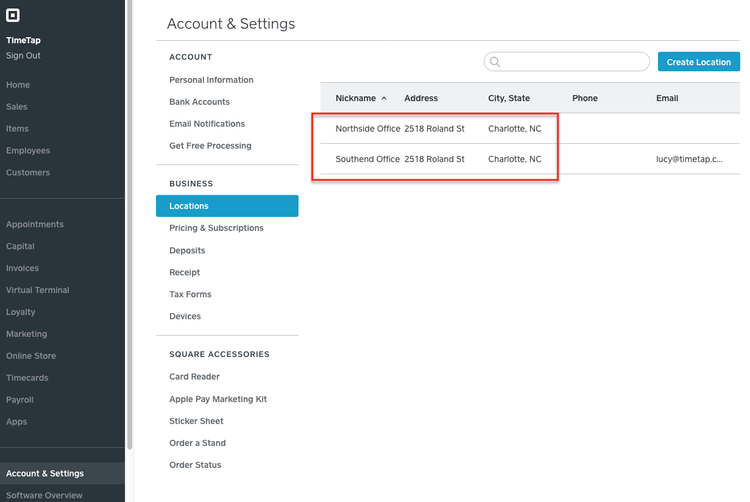
Since I've integrated my Square account to TimeTap, I can go to Payments > Payment Settings and I'll see that the Square Payment Portal is Set Up -
Please note: If you have yet to set up the Square integration, you may want to first go through our integration setup guide here in our documentation.
If I click on the blue Edit button in the Square payment portal, I'll then be able to check the box next to "Allow Payment By Location" -
By checking off "Allow Payment By Location", I'll be able to see my TimeTap locations and map them to the corresponding Square locations from my connected account -
Once I'm done mapping, I can click on the green Save button at the bottom of the payment portal. This will make it so that any invoices that are assigned to my Southside location in TimeTap will go through to the Southend Office sub-account on Square, and any invoices assigned to my Northside location in TimeTap will go through to the Northside Office sub-account on Square.